ArchivematicaのNormalizationの挙動の確認

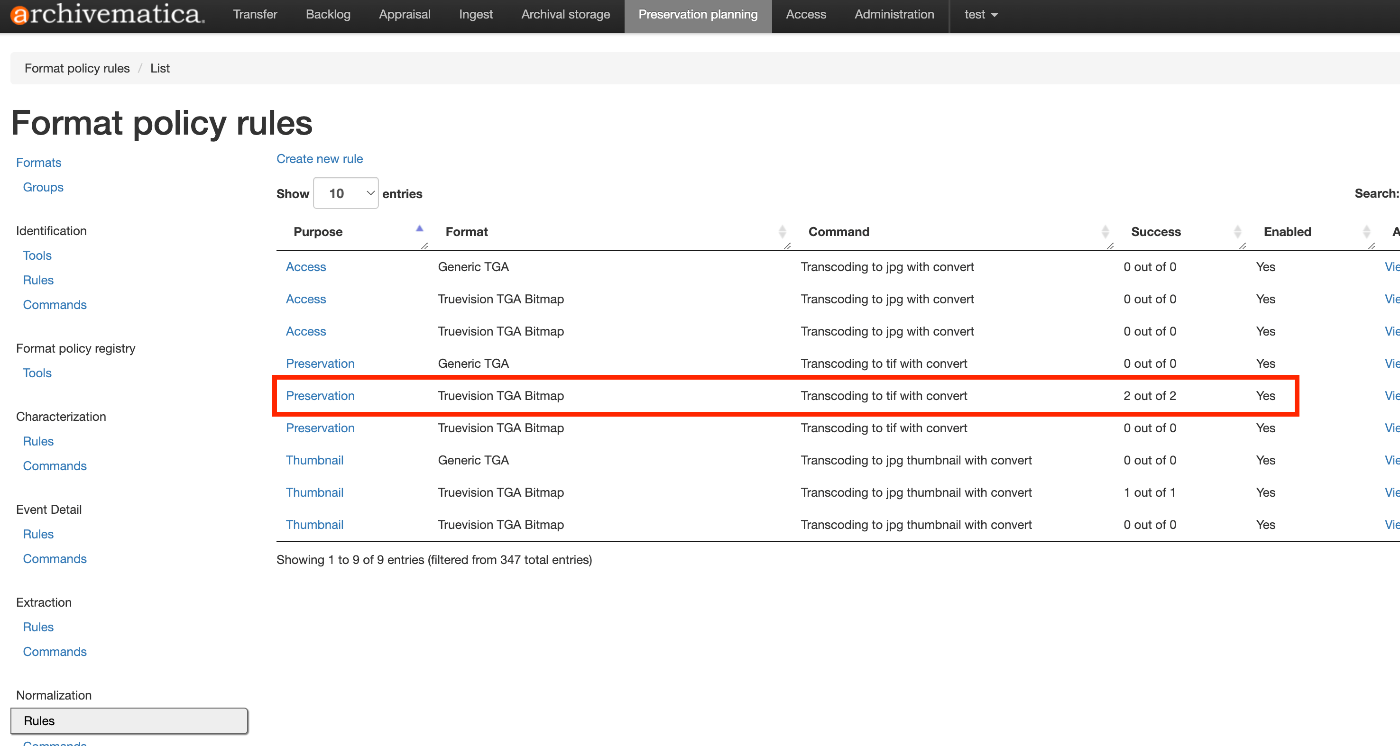
概要 ArchivematicaではPreservation planningにおいて、Normalizationなどの設定を行うことができます。この挙動の確認に関する備忘録です。 設定 Normalizationに関する設定は以下で確認できます。 /fpr/fprule/normalization/ 上記では、Purpose がPreservationであるもので、Format がTruevision TGA Bitmapであるものについて、Command に記載があるTranscoding to tif with convertを行う、と指示されています。 実行例 以下を処理の対象とします。 https://github.com/artefactual/archivematica-sampledata/tree/master/SampleTransfers/CSVmetadata 実際にAIPを作成したところ、以下に示すように、入力ファイルはMARBLES.TGAというファイルでしたが、上記の変換ルールに基づき、MARBLES-b9c7a103-220b-4d12-bda5-10cfd892e16a.tifというTIFファイルに正規化されたファイルが含まれていることが確認できます。 まとめ Archivematicaの利用にあたり、参考になりましたら幸いです。

2024年8月23日 · 1 分 · Nakamura

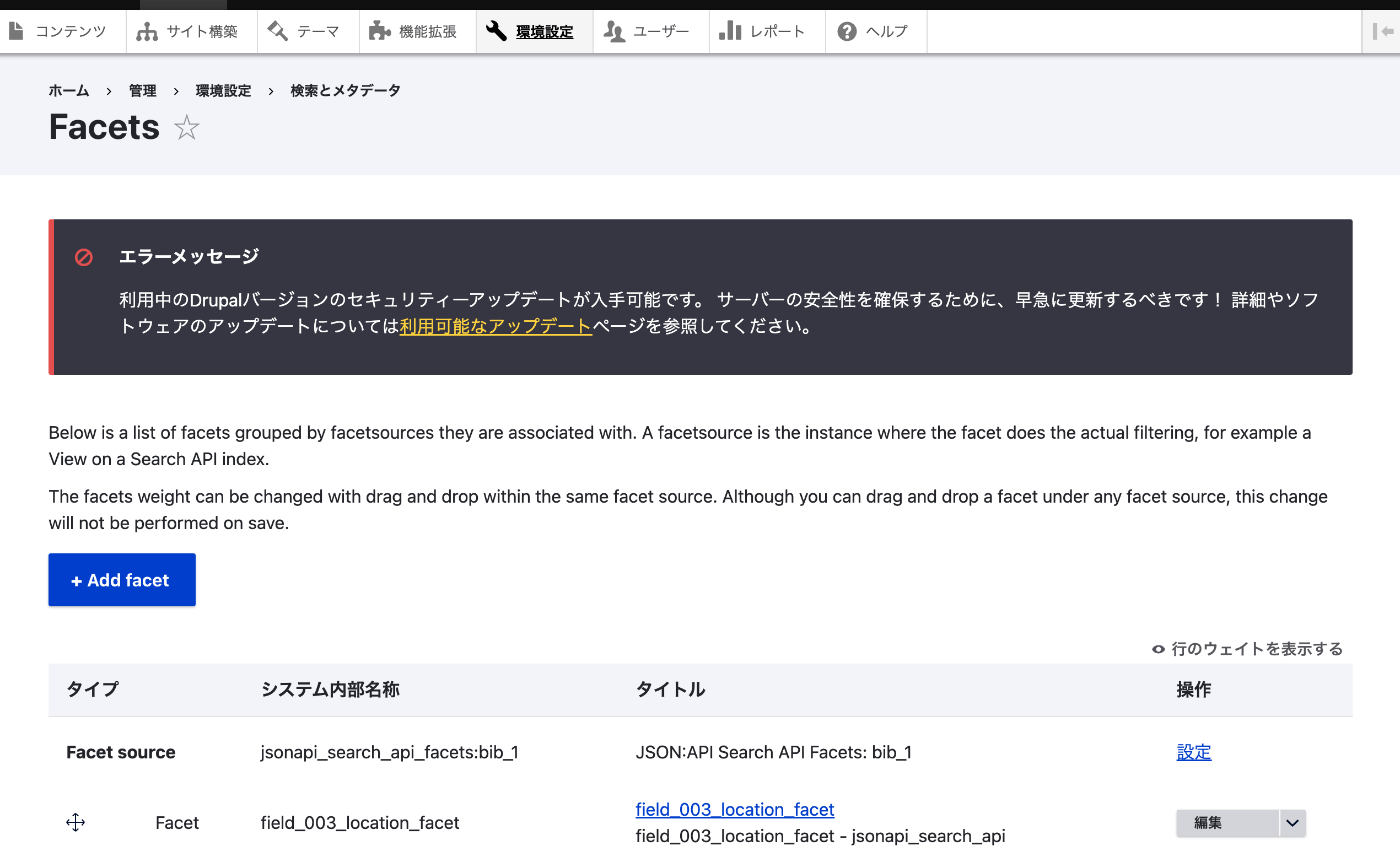
DrupalのFacetsで並び順を指定する

概要 DrupalのFacetsで並び順を指定するための備忘録です。 方法 以下にアクセスすることで、ファセットの設定を変更することができます。 /admin/config/search/facets それぞれのファセットで編集ボタンを押すと、以下の画面に遷移します。 画面下部にFacet sorting という項目があり、カウントおよび名前順を設定することができます。名前順にしたい場合には、Sort by countのチェックを外します。 まとめ Drupalの利用にあたり、参考になりましたら幸いです。

2024年8月23日 · 1 分 · Nakamura

TropyのデータをOmeka Sにエクスポートする

概要 TropyのデータをOmeka Sにエクスポートする機会がありましたので、備忘録です。 操作方法 末尾に公式のマニュアルの機械翻訳を掲載しています。 使用例 以下、Tropyの画面です。いらすとやさんの画像を利用させていただきます。以下のように、画像へのアノテーションなども行うことができました。 以下はOmeka Sにエクスポートした結果です。切り出した画像などの複数のメディアとともに、新規のアイテムとして登録されました。 所感 全アイテム、および個々のアイテムごとにワンクリックでOmeka Sにエクスポートできる点は便利でした。 一方、現在は新規登録のみに対応しており、同じアイテムで2回エクスポートを行うと、Omeka Sに2つのアイテムが作成されました。 プラグインはJavaScriptで作成されていますので、今後、更新処理を行う機能などの追加を検討したいと思います。 https://github.com/tropy/tropy-plugin-omeka/ まとめ 参考になりましたら幸いです。 以下、公式のマニュアルの機械翻訳です。 Omeka Sへのエクスポート Omeka Sプラグインは現在ベータ版です。 プラグインのインストール Omeka Sプラグインのインストールは複数のステップからなります。 パート1: 準備 プラグインのGitHubリポジトリに移動します。 Omeka Sプラグインを含むZipファイルをダウンロードしますが、解凍しないでください。 パート2: Omeka S内 Omekaの管理パネルに移動し、 ユーザー をクリックします。ユーザーリストの各名前の横に鉛筆アイコンがあります。鉛筆アイコンをクリックしてユーザープロファイルを開きます。ユーザーの追加や編集方法についてはこちらをご覧ください。 ユーザープロファイル内で、 APIキー をクリックします。 新しいキーを追加する必要があります。 新しいキーラベル フィールドに名前を入力し、 Enter キーを押します。 key identity と key credential が生成されるボックスが表示されます。Tropyプラグインのインストールと設定が完了するまで、このブラウザページを閉じないでください。 パート3: プラグインペイン内 Tropyを開き、トップメニューの「Preferences」へ移動します(Windowsでは、 Edit > Preferences )。 「Preferences」で、「Plugins」をクリックします。プラグインペインの下部で、「 Install Plugin 」をクリックします。GitHubリポジトリから保存したプラグインファイルの場所に移動し、それを選択して「 Open 」をクリックします。 これで、Omekaプラグインがプラグインペインに表示されるはずです。「 Enable 」をクリックしてセットアップを続けます。 プラグインを有効にすると開くフォームで、プラグインが正しく動作するためにすべてのフィールドに入力する必要があります。 名前 : Omekaプラグインのインスタンスに任意の名前を付けることができます。Omekaサイトと同じ名前を付けることをお勧めします。 API URL : OmekaインストールのURLをコピーして、< >の間に貼り付けます(山括弧は削除)。http://が一つだけあることを確認してください。Omekaインストール内の個別のサイトにリンクするのではなく、Omeka Sインストールのルートにリンクしてください。 Identity keyおよびcredential key : これらの2つのフィールドは、Omekaインストールでまだ開いているはずのページから取得します。適切なフィールドにコピーして貼り付けます。 これらのフィールドに入力が完了したら、設定が完了です。Preferencesウィンドウを閉じることができます。 ...

2024年8月23日 · 1 分 · Nakamura

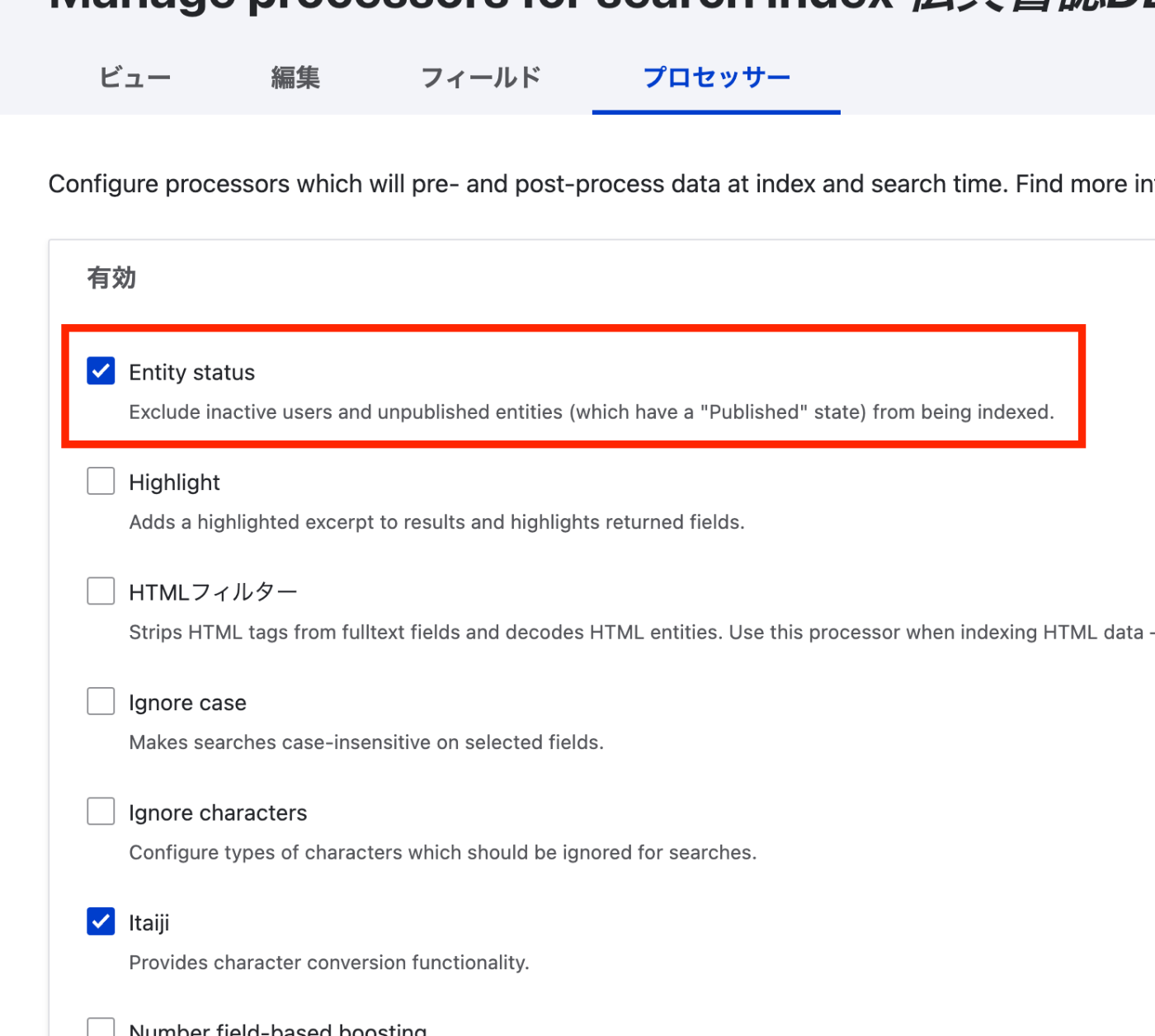
DrupalのSearch APIで非公開コンテンツをインデックスしないようにする

概要 DrupalのSearch APIで非公開コンテンツをインデックスしないようにする方法の備忘録です。 参考 以下にも記載がありました。 https://www.acquia.com/jp/blog/introduction-to-search-api-1 方法 以下において、「Entity status」を有効にする必要がありました。 /admin/config/search/search-api/index/xxx/processors まとめ 参考になりましたら幸いです。

2024年8月20日 · 1 分 · Nakamura

Annotorious OpenSeadragon Pluginを使ったサンプルプログラム

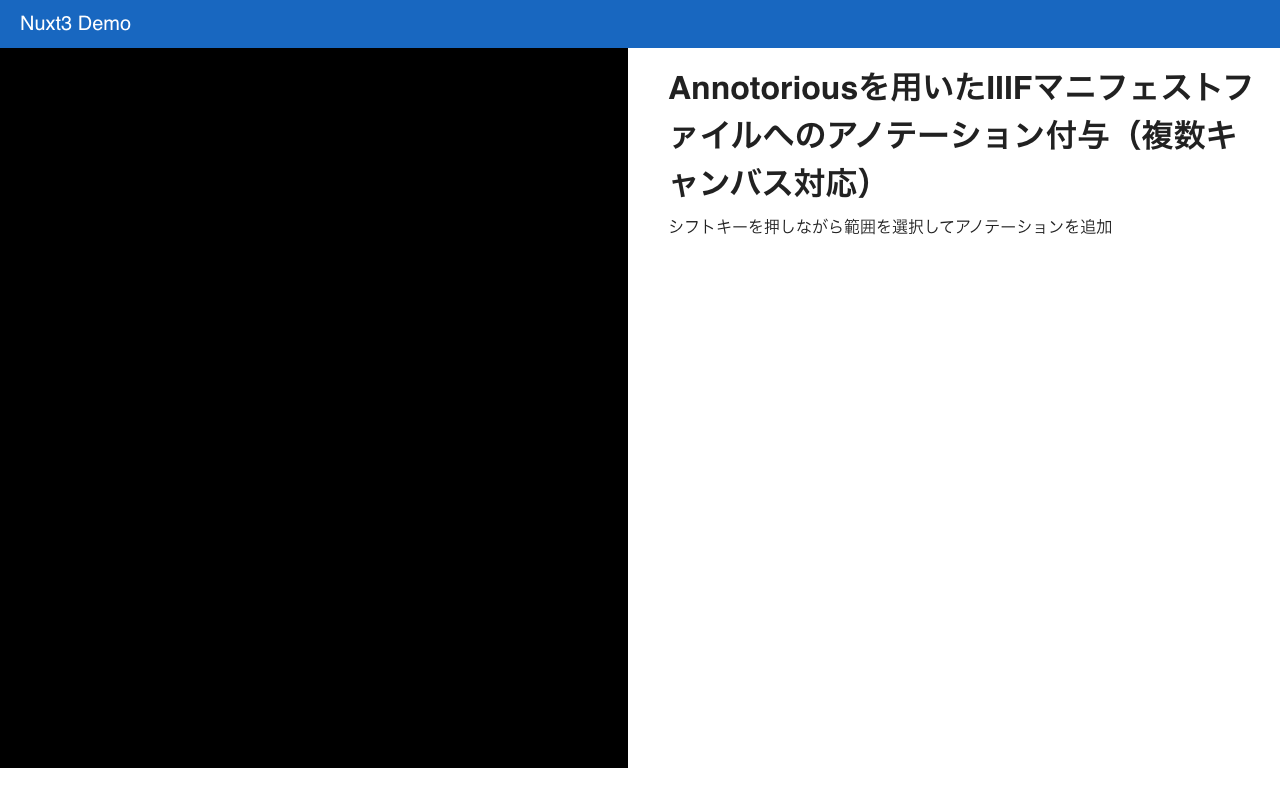
概要 Annotorious OpenSeadragon Pluginを使って、IIIFマニフェストファイルからロードした複数画像に対するアノテーション付与を行うサンプルプログラムを作成しました。以下からお試しいただけます。 https://nakamura196.github.io/nuxt3-demo/annotorious ソースコード 以下を参考にしてください。 https://github.com/nakamura196/nuxt3-demo/blob/main/pages/annotorious/index.vue ポイント npm install –force ライブラリ@recogito/annotorious-openseadragonはopenseadragonのv5に非対応のようで、強制的にインストールする必要がありました。 npm error Could not resolve dependency: npm error peer openseadragon@"^3.0.0 || ^4.0.0" from @recogito/annotorious-openseadragon@2.7.18 npm error node_modules/@recogito/annotorious-openseadragon npm error @recogito/annotorious-openseadragon@"^2.7.18" from the root project plugins プラグインとして、Annotoriousを読み込みました。 https://github.com/nakamura196/nuxt3-demo/blob/main/plugins/osd.client.js ページ切り替え ページを切り替えた際、一旦アノテーションをクリアして、該当ページのアノテーションをロードする必要がありました。 ... // Reactive object to store annotations for each page const annotationsMap = ref<{ [key: number]: Annotation[]; }>({}); ... // Add handler to clear and display annotations on page navigation viewer.addHandler("page", () => { anno.clearAnnotations(); showCurrentCanvasAnnotations(); }); // Function to display annotations for the current canvas const showCurrentCanvasAnnotations = () => { const index = viewer.currentPage(); const annotationsMap_ = annotationsMap.value; if (annotationsMap_[index]) { annotationsMap_[index].forEach((annotation: Annotation) => { anno.addAnnotation(annotation); }); } }; ... まとめ 本プログラムを応用して、他のアプリケーションとの接続も可能かと思います。参考になりましたら幸いです。 ...

2024年8月16日 · 1 分 · Nakamura

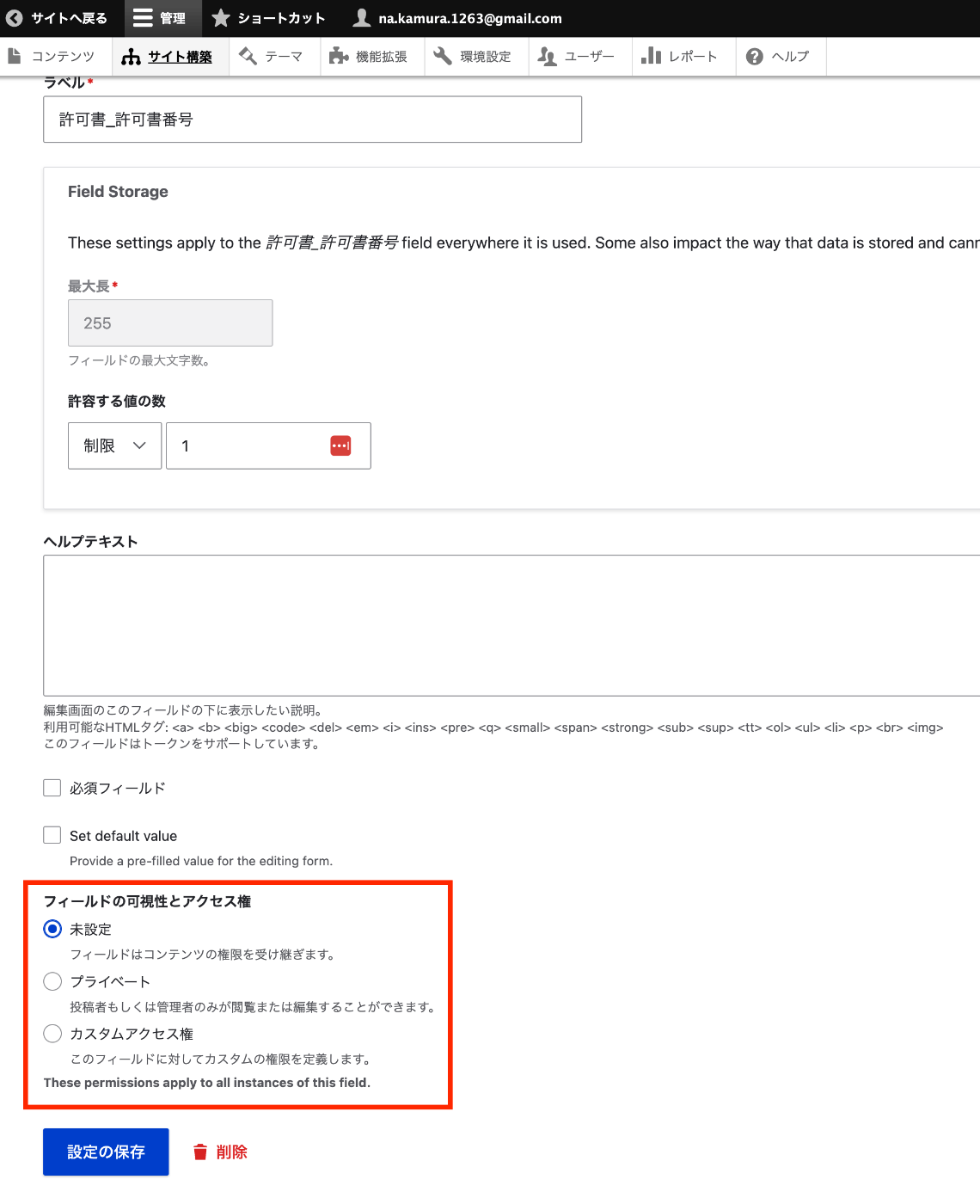
Drupalでフィールド単位で公開・非公開を設定する

概要 Omeka Sではフィールド単位で公開・非公開を設定することができます。これをDrupalで実現する方法のメモです。 インストール composer.phar require 'drupal/field_permissions:^1.4' ./vendor/bin/drush en field_permissions 設定 以下のような、あるコンテンツタイプのあるフィールドの編集画面に遷移します。 /admin/structure/types/manage/bib_1/fields/node.bib_1.field_003_permission_number 以下に示すように、フィールドの可視性を設定することができます。 プログラムによるアクセス 以下のように、access関数を使って、フィールドのビュー権限をチェックすることができました。 // ログインユーザーのアカウントを取得 $current_user = \Drupal::currentUser(); $fieldDefinitions = \Drupal::service('entity_field.manager')->getFieldDefinitions('node', $nodeType); foreach ($fieldDefinitions as $fieldName => $definition) { $field = $nodeEntity->get($fieldName); // フィールドのビュー権限をチェック if (!$field->access('view', $current_user)) { continue; } ... まとめ よりよい方法があるかもしれませんが、Drupalでフィールド単位での公開・非公開にあたり、参考になりましたら幸いです。

2024年8月16日 · 1 分 · Nakamura

Drupal:

概要 Drupalでキャッシュを削除した際、以下のようなエラーが発生することがありました。 ./vendor/bin/drush cr In CheckExceptionOnInvalidReferenceBehaviorPass.php line 88: The service "access_check.contact_personal" has a dependency on a non-exist ent service "user.data". 本エラーへの対応方法に関する備忘録です。 参考 以下が参考になりました。 https://www.drupal.org/forum/support/upgrading-drupal/2018-04-26/after-upgrade-to-853-the-service-access_checkcontact 対策 Featuresモジュールにより、userというモジュールが作成されていました。 /modules/custom/user これを削除することにより、当該エラーを回避することができました。 その他 同様に、commentというモジュールが悪さをすることもありました。同様に削除することにより、エラーを回避できました。 まとめ 同様のエラーでお困りの方の参考になりましたら幸いです。

2024年8月16日 · 1 分 · Nakamura

画像ファイルに対してGoogle Cloud Visionを適用して、IIIFマニフェストおよびTEI/XMLファイルを作成する

概要 画像ファイルに対してGoogle Cloud Visionを適用して、IIIFマニフェストおよびTEI/XMLファイルを作成するライブラリを作成しました。 https://github.com/nakamura196/iiif_tei_py 本ライブラリの使用方法を説明します。 使用方法 以下で使い方などを確認できます。 https://nakamura196.github.io/iiif_tei_py/ ライブラリのインストール GitHubのリポジトリから、ライブラリをインストールします。 pip install https://github.com/nakamura196/iiif_tei_py GCのサービスアカウントの作成 以下の記事などを参考に、GC(Google Cloud)のサービスアカウントキー(JSONファイル)をダウンロードします。 https://book.st-hakky.com/data-science/data-science-gcp-vision-api-setting/ そして、以下のような.envファイルを作成します。 GOOGLE_APPLICATION_CREDENTIALS=your-google-credentials.json 実行 入力サンプル画像として、IIIF Cookbookでも使用されている以下の画像を使用します。 https://iiif.io/api/presentation/2.1/example/fixtures/resources/page1-full.png 以下のようなファイルを作成して実行します。 from iiif_tei_py.core import CoreClient cred_path = CoreClient.load_env() url = "https://iiif.io/api/presentation/2.1/example/fixtures/resources/page1-full.png" output_tei_xml_file_path = "./tmp/01/output.xml" CoreClient.create_tei_xml_with_gocr(url, output_tei_xml_file_path, cred_path, title="Sample") 上記の例では、IIIFマニフェストファイルが./tmp/01/output.jsonに、TEI/XMLファイルが./tmp/01/output.xmlに作成されます。 結果の確認 IIIF IIIFマニフェストファイルをMiradorで表示した例が以下です。 JSONファイルの内容は以下です。 { "@context": "http://iiif.io/api/presentation/3/context.json", "id": "http://example.org/iiif/abc/manifest", "label": { "none": [ "Sample" ] }, "type": "Manifest", "items": [ { "id": "http://example.org/iiif/abc/canvas/p1", "type": "Canvas", "label": { "none": [ "[1]" ] }, "height": 1800, "width": 1200, "items": [ { "id": "http://example.org/iiif/abc/annotation/p0001-image", "type": "AnnotationPage", "items": [ { "body": { "id": "https://iiif.io/api/presentation/2.1/example/fixtures/resources/page1-full.png", "type": "Image", "format": "image/jpeg", "height": 1800, "width": 1200 }, "id": "http://example.org/iiif/abc/annotation/p0001-image/anno", "type": "Annotation", "motivation": "painting", "target": "http://example.org/iiif/abc/canvas/p1" } ] } ], "annotations": [ { "id": "http://example.org/iiif/abc/canvas/p1/curation", "type": "AnnotationPage", "items": [ { "body": { "type": "TextualBody", "value": "[00001] Top", "format": "text/plain" }, "id": "http://example.org/iiif/abc/canvas/p1#xywh=245/69/94/52", "type": "Annotation", "motivation": "commenting", "target": "http://example.org/iiif/abc/canvas/p1#xywh=245,69,94,52" }, { "body": { "type": "TextualBody", "value": "[00002] of", "format": "text/plain" }, "id": "http://example.org/iiif/abc/canvas/p1#xywh=355/69/49/52", "type": "Annotation", "motivation": "commenting", "target": "http://example.org/iiif/abc/canvas/p1#xywh=355,69,49,52" }, { "body": { "type": "TextualBody", "value": "[00003] First", "format": "text/plain" }, "id": "http://example.org/iiif/abc/canvas/p1#xywh=420/69/112/54", "type": "Annotation", "motivation": "commenting", "target": "http://example.org/iiif/abc/canvas/p1#xywh=420,69,112,54" }, { "body": { "type": "TextualBody", "value": "[00004] Page", "format": "text/plain" }, "id": "http://example.org/iiif/abc/canvas/p1#xywh=547/70/134/53", "type": "Annotation", "motivation": "commenting", "target": "http://example.org/iiif/abc/canvas/p1#xywh=547,70,134,53" }, { "body": { "type": "TextualBody", "value": "[00005] to", "format": "text/plain" }, "id": "http://example.org/iiif/abc/canvas/p1#xywh=697/71/50/52", "type": "Annotation", "motivation": "commenting", "target": "http://example.org/iiif/abc/canvas/p1#xywh=697,71,50,52" }, { "body": { "type": "TextualBody", "value": "[00006] Display", "format": "text/plain" }, "id": "http://example.org/iiif/abc/canvas/p1#xywh=763/71/189/54", "type": "Annotation", "motivation": "commenting", "target": "http://example.org/iiif/abc/canvas/p1#xywh=763,71,189,54" }, { "body": { "type": "TextualBody", "value": "[00007] Middle", "format": "text/plain" }, "id": "http://example.org/iiif/abc/canvas/p1#xywh=296/593/163/164", "type": "Annotation", "motivation": "commenting", "target": "http://example.org/iiif/abc/canvas/p1#xywh=296,593,163,164" }, { "body": { "type": "TextualBody", "value": "[00008] of", "format": "text/plain" }, "id": "http://example.org/iiif/abc/canvas/p1#xywh=433/733/76/76", "type": "Annotation", "motivation": "commenting", "target": "http://example.org/iiif/abc/canvas/p1#xywh=433,733,76,76" }, { "body": { "type": "TextualBody", "value": "[00009] First", "format": "text/plain" }, "id": "http://example.org/iiif/abc/canvas/p1#xywh=484/786/123/124", "type": "Annotation", "motivation": "commenting", "target": "http://example.org/iiif/abc/canvas/p1#xywh=484,786,123,124" }, { "body": { "type": "TextualBody", "value": "[00010] Page", "format": "text/plain" }, "id": "http://example.org/iiif/abc/canvas/p1#xywh=584/889/128/129", "type": "Annotation", "motivation": "commenting", "target": "http://example.org/iiif/abc/canvas/p1#xywh=584,889,128,129" }, { "body": { "type": "TextualBody", "value": "[00011] on", "format": "text/plain" }, "id": "http://example.org/iiif/abc/canvas/p1#xywh=691/998/80/80", "type": "Annotation", "motivation": "commenting", "target": "http://example.org/iiif/abc/canvas/p1#xywh=691,998,80,80" }, { "body": { "type": "TextualBody", "value": "[00012] Angle", "format": "text/plain" }, "id": "http://example.org/iiif/abc/canvas/p1#xywh=749/1057/148/149", "type": "Annotation", "motivation": "commenting", "target": "http://example.org/iiif/abc/canvas/p1#xywh=749,1057,148,149" }, { "body": { "type": "TextualBody", "value": "[00013] Bottom", "format": "text/plain" }, "id": "http://example.org/iiif/abc/canvas/p1#xywh=203/1686/175/55", "type": "Annotation", "motivation": "commenting", "target": "http://example.org/iiif/abc/canvas/p1#xywh=203,1686,175,55" }, { "body": { "type": "TextualBody", "value": "[00014] of", "format": "text/plain" }, "id": "http://example.org/iiif/abc/canvas/p1#xywh=398/1689/51/53", "type": "Annotation", "motivation": "commenting", "target": "http://example.org/iiif/abc/canvas/p1#xywh=398,1689,51,53" }, { "body": { "type": "TextualBody", "value": "[00015] First", "format": "text/plain" }, "id": "http://example.org/iiif/abc/canvas/p1#xywh=466/1689/109/54", "type": "Annotation", "motivation": "commenting", "target": "http://example.org/iiif/abc/canvas/p1#xywh=466,1689,109,54" }, { "body": { "type": "TextualBody", "value": "[00016] Page", "format": "text/plain" }, "id": "http://example.org/iiif/abc/canvas/p1#xywh=593/1690/130/54", "type": "Annotation", "motivation": "commenting", "target": "http://example.org/iiif/abc/canvas/p1#xywh=593,1690,130,54" }, { "body": { "type": "TextualBody", "value": "[00017] to", "format": "text/plain" }, "id": "http://example.org/iiif/abc/canvas/p1#xywh=740/1692/51/54", "type": "Annotation", "motivation": "commenting", "target": "http://example.org/iiif/abc/canvas/p1#xywh=740,1692,51,54" }, { "body": { "type": "TextualBody", "value": "[00018] Display", "format": "text/plain" }, "id": "http://example.org/iiif/abc/canvas/p1#xywh=808/1693/190/54", "type": "Annotation", "motivation": "commenting", "target": "http://example.org/iiif/abc/canvas/p1#xywh=808,1693,190,54" } ] } ] } ] } TEI また、TEI/XMLファイルをOxygen XML Editorで表示した例が以下です。 ...
2024年8月8日 · 4 分 · Nakamura

Omeka Sのv4.0.4からv4.1へのアップデートに伴うエラー対応

概要 Omeka Sの更新作業にあたり、以下のエラーが発生しました。 Fatal error: Uncaught ArgumentCountError: Too few arguments to function Omeka\View\Renderer\ApiJsonRenderer::__construct(), 0 passed このエラーへの対処方法に関する備忘録です。 対処方法 以下に記載がありました。 https://forum.omeka.org/t/upgrade-from-4-0-4-to-4-1-failed/22281 具体的には、Nextモジュールをアンイストールすることで、上記の不具合を解消することができました。 まとめ 同様のことでお困りの方の参考になりましたら幸いです。

2024年8月1日 · 1 分 · Nakamura

Omeka Sの更新

概要 Omeka Sの更新作業に関する備忘録です。以下の公式ドキュメントも参考にしてください。 https://omeka.org/s/docs/user-manual/install/#updating 事前準備:バックアップ 更新作業の前には、不測の事態に備えてデータベースとファイル一式のバックアップを必ず取得してください。 1. データベースのバックアップ mysqldumpコマンドなどでデータベースのダンプファイルを作成します。 # mysqldump -u [DBユーザー名] -p [DB名] > [出力ファイル名] mysqldump -u db_user -p omeka_s_db > omeka_s_backup.sql 2. ファイルのバックアップ Omeka Sのインストールディレクトリ全体をバックアップ(複製)します。 cd /home/nakamura/www # ディレクトリごとコピーする場合(日付などを付与しておくと便利です) cp -r omeka-s omeka-s_backup_20240801 # または、tarコマンドで圧縮して保存する場合 # tar -czvf omeka-s_backup_20240801.tar.gz omeka-s メンテナンスモード 更新にあたり、メンテナンスモードに切り替えます。 以下のEasyAdminモジュールをインストールしておきます。 https://omeka.org/s/modules/EasyAdmin/ そして、以下の「設定」ボタンから、設定ページにアクセスします。 /admin/setting 「Maintenance」項目について、例えば「Public front-end」にチェックを入れて保存します。 結果、以下のように、メンテナンスページが表示されるようになります。 本体およびデフォルトテーマの更新 Omeka Sがインストールされたディレクトリに移動して、以下を実行します。 cd /home/nakamura/www/omeka-s 以下は、v4.1.1に更新する例です。 version=4.1.1 wget https://github.com/omeka/omeka-s/releases/download/v$version/omeka-s-$version.zip unzip omeka-s-$version.zip rm -rf *.zip rm -rf application rm -rf vendor mv omeka-s/application . mv omeka-s/*.php . mv omeka-s/composer.* . mv omeka-s/LICENSE . mv omeka-s/README.md . mv omeka-s/vendor . rm -rf ./themes/default mv omeka-s/themes/default ./themes/ rm -rf omeka-s /admin にアクセスすると、/migrate にリダイレクトされ、以下の画面が表示されます。「データベースの更新」ボタンを押します。 ...

2024年8月1日 · 1 分 · Nakamura

Omeka SのBulkExportを使って、特定のアイテムの指定した項目のみをエクスポートする

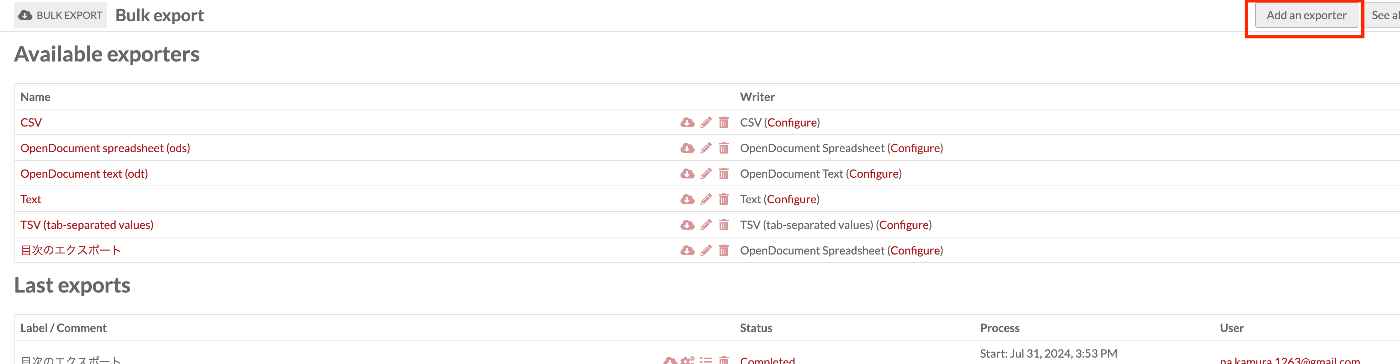
概要 Omeka SのBulkExportを使って、特定のアイテムの指定した項目のみをエクスポートする方法について紹介します。 ここでは、「Table Of Contents(dcterms:tableOfContents)」を持つアイテムのみに限定し、「タイトル(dcterms:title)」と「識別子(dcterms:identifier)」のみをエクスポートしてみます。 関連 以下の記事で、Omeka SのBulkExportモジュールの概要について説明しています。 今回は、具体的な使用例を元に説明します。 方法 以下にアクセスします。 /admin/bulk-export/bulk-export 「Add an exporter」ボタンを押します。 適当なラベルと、フォーマット(Writer)を指定します。 作成後、再度アクセスして、「Writer」タブを開きます。 そこで、「Metadata」項目から、出力したい項目を指定します。 また、「Resource query」項目から、出力したいアイテムを限定します。ここでは、「Table Of Contents(dcterms:tableOfContents)」に何かしらの値を持つ「has any value」を指定します。 以後、この設定を使用することにより、上記の条件に合致するアイテムおよび項目をエクスポートすることができます。 まとめ 検索条件や出力項目を変更して、目的に応じたエクスポートをお試しください。 本記事が参考になりましたら幸いです。

2024年7月31日 · 1 分 · Nakamura

Pythonを使ってRDFデータをDydraに登録する

概要 Pythonを使ってRDFデータをDydraに登録するライブラリを作成しました。 https://github.com/nakamura196/dydra-py 中途半端な実装が含まれますが、お役に立つ場面があれば幸いです。 工夫 インポートは以下で行なっています。 https://github.com/nakamura196/dydra-py/blob/main/dydra_py/api.py#L55 以下のように、SPARQLのINSERT DATA オペレーションを使用しています。 def import_by_file(self, file_path, format, graph_uri=None, verbose=False): """ Imports RDF data from a file into the Dydra store. Args: file_path (str): The path to the RDF file to import. format (str): The format of the RDF file (e.g., 'xml', 'nt'). graph_uri (str, optional): URI of the graph where data will be inserted. Defaults to None. """ headers = { "Authorization": f"Bearer {self.api_key}", "Content-Type": "application/sparql-update" } files = self._chunk_rdf_file(file_path, format=format) print("Number of chunks: ", len(files)) for file in tqdm(files): # RDFファイルの読み込み graph = rdflib.Graph() graph.parse(file, format=format) # フォーマットはファイルに応じて変更 nt_data = graph.serialize(format='nt') if graph_uri is None: query = f""" INSERT DATA {{ {nt_data} }} """ else: query = f""" INSERT DATA {{ GRAPH <{graph_uri}> {{ {nt_data} }} }} """ if verbose: print(query) response = requests.post(self.endpoint, data=query, headers=headers) if response.status_code == 200: print("Data successfully inserted.") else: print(f"Error: {response.status_code} {response.text}") 工夫 工夫した点として、サイズが大きいRDFファイルを一度にアップロードした際、プロセスが途中で止まってしまうケースがありました。 ...

2024年7月26日 · 2 分 · Nakamura

OpenAIでストレージ内のすべてのファイルを削除する

概要 OpenAIでストレージ内のすべてのファイルを削除する方法に関する備忘録です。 以下のページが参考になりました。 https://community.openai.com/t/deleting-everything-in-storage/664945 背景 以下のようなコードによってアップロードした複数ファイルを一括削除したいケースがありました。 file_paths = glob("data/txt/*.txt") file_streams = [open(path, "rb") for path in file_paths] # Use the upload and poll SDK helper to upload the files, add them to the vector store, # and poll the status of the file batch for completion. file_batch = client.beta.vector_stores.file_batches.upload_and_poll( vector_store_id=vector_store.id, files=file_streams ) # You can print the status and the file counts of the batch to see the result of this operation. print(file_batch.status) print(file_batch.file_counts) 方法 以下のコードを実行することに、一括削除を行うことができました。 ...

2024年7月24日 · 2 分 · Nakamura

nuxt3-leafletで、指定したマーカーを前面に表示する

概要 nuxt3-leafletで、指定したマーカーを前面に表示する方法に関する備忘録です。 方法 以下のように、LMarkerにz-index-offset属性を用いることで、指定したマーカーを前面に表示することができました。 <template v-for="marker in markers"> <LMarker @click="selectMarker(marker)" :lat-lng="[marker.lat, marker.lng]" :z-index-offset="selectedSpotId === marker.id ? 1000 : 0" > <LTooltip> {{ marker.title }} </LTooltip> <LIcon :iconUrl="marker.icon" :iconSize="[25, 41]" :iconAnchor="[12, 41]" :popupAnchor="[1, -34]" :tooltipAnchor="[16, -28]" shadowUrl="https://esm.sh/leaflet@1.9.2/dist/images/marker-shadow.png" :shadowSize="[41, 41]" :shadowAnchor="[12, 41]" ></LIcon> </LMarker> </template> まとめ nuxt3-leafletの利用にあたり、参考になりましたら幸いです。

2024年7月23日 · 1 分 · Nakamura

LEAF Writer: Miradorを追加する

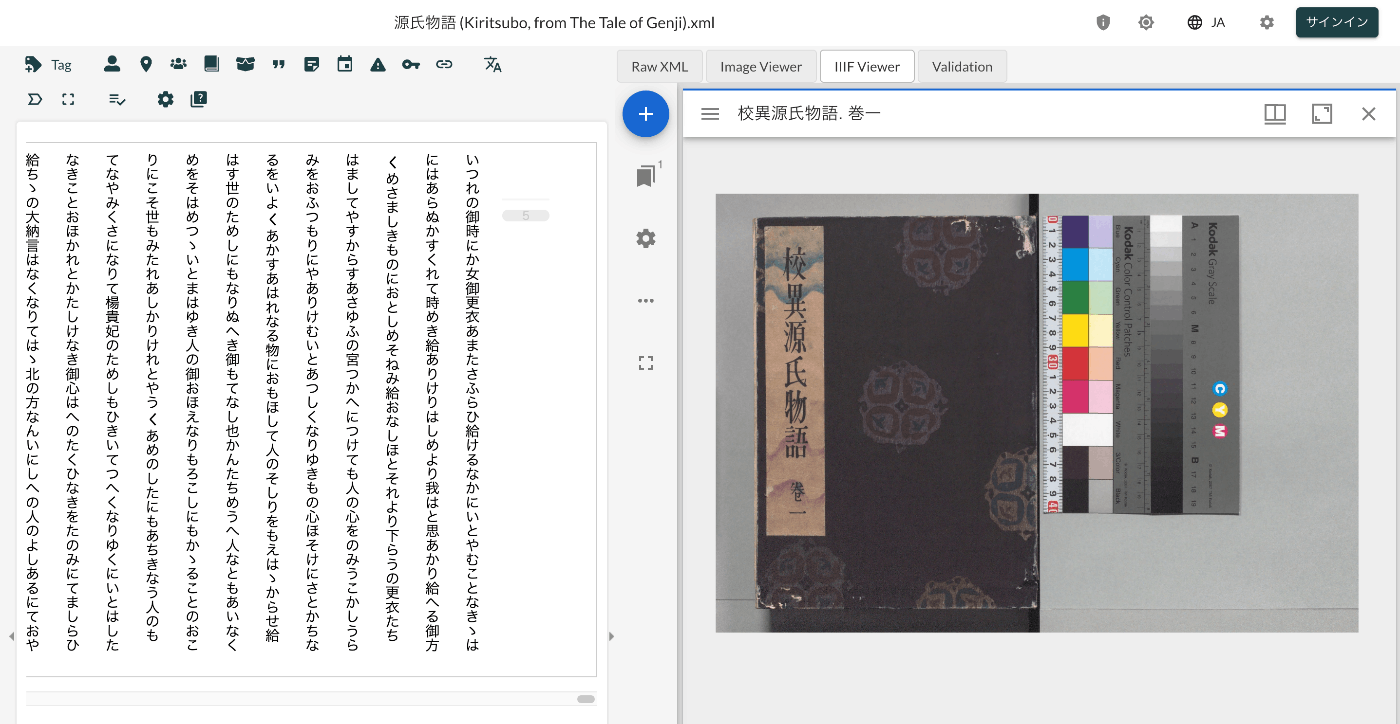
概要 LEAF Writerのカスタマイズ方法に関する調査記録です。 https://gitlab.com/calincs/cwrc/leaf-writer/leaf-writer 今回は以下のように、Miradorを追加します。 方法 以下を参考にしてください。 https://gitlab.com/nakamura196/leaf-writer/-/commit/377438739cdeb0a7b770ee9d4b9fea86081179d8 修正が必要なファイルは以下です。 import $ from 'jquery'; import 'jquery-ui'; import Writer from '../../../Writer'; // @ts-ignore import Mirador from 'mirador'; interface IiifViewerProps { attribute?: string; parentId: string; tag?: string; writer: Writer; } class IiifViewer { readonly writer: Writer; readonly id: string; readonly tagName: string; readonly attrName: string; // eslint-disable-next-line @typescript-eslint/no-explicit-any, @typescript-eslint/no-redundant-type-constituents miradorInstance: any | null; $pageBreaks: unknown; currentIndex = -1; ignoreScroll = false; constructor({ attribute, parentId, tag, writer }: IiifViewerProps) { this.writer = writer; this.id = `${parentId}_iiifViewer`; this.tagName = tag ?? 'pb'; // page break element name this.attrName = attribute ?? 'facs'; // attribute that stores the image URL $(`#${parentId}`).append(` <div id="${this.id}" style="position: absolute; top: 0; bottom: 0; left: 0; right: 0"></div> `); this.writer.event('loadingDocument').subscribe(() => this.reset()); this.writer.event('documentLoaded').subscribe((success: boolean, body: HTMLElement) => { console.log('documentLoaded', success, body); if (!success) return; this.processDocument(body); }); this.writer.event('writerInitialized').subscribe(() => { if (!this.writer.editor) return; }); } private processDocument(doc: HTMLElement) { // (doc).find const $facsimile = $(doc).find(`*[_tag="facsimile"]`); const manifestUri = $facsimile.attr('sameas'); const config = { id: this.id, windows: [ { loadedManifest: manifestUri, }, ], window: { sideBarOpen: false, }, }; // eslint-disable-next-line @typescript-eslint/no-unsafe-assignment, @typescript-eslint/no-unsafe-call, @typescript-eslint/no-unsafe-member-access this.miradorInstance = Mirador.viewer(config); } reset() { this.$pageBreaks = null; this.currentIndex = -1; } } export default IiifViewer; 以下の箇所で、<facsimile sameAs="https://dl.ndl.go.jp/api/iiif/3437686/manifest.json">の情報を取得しています。 ...

2024年7月23日 · 1 分 · Nakamura

Omeka S IIIF Serverモジュール[3.6.19, 3.6.20]の不具合

概要 Omeka SのIIIF Serverモジュールの3.6.19と3.6.20について、URIの表記が崩れる不具合が確認できました。 具体的には、以下のように、FQDNがおかしくなりました。 https://xxx.yyy.zzz.jp//aaa.bbb.ccc.jp/iiif/3/1234/manifest 対策 本記事執筆時点において、3.6.21はリリースされていないので、3.6.18以前のモジュールを使用することをお勧めします。 まとめ 参考になりましたら幸いです。

2024年7月19日 · 1 分 · Nakamura

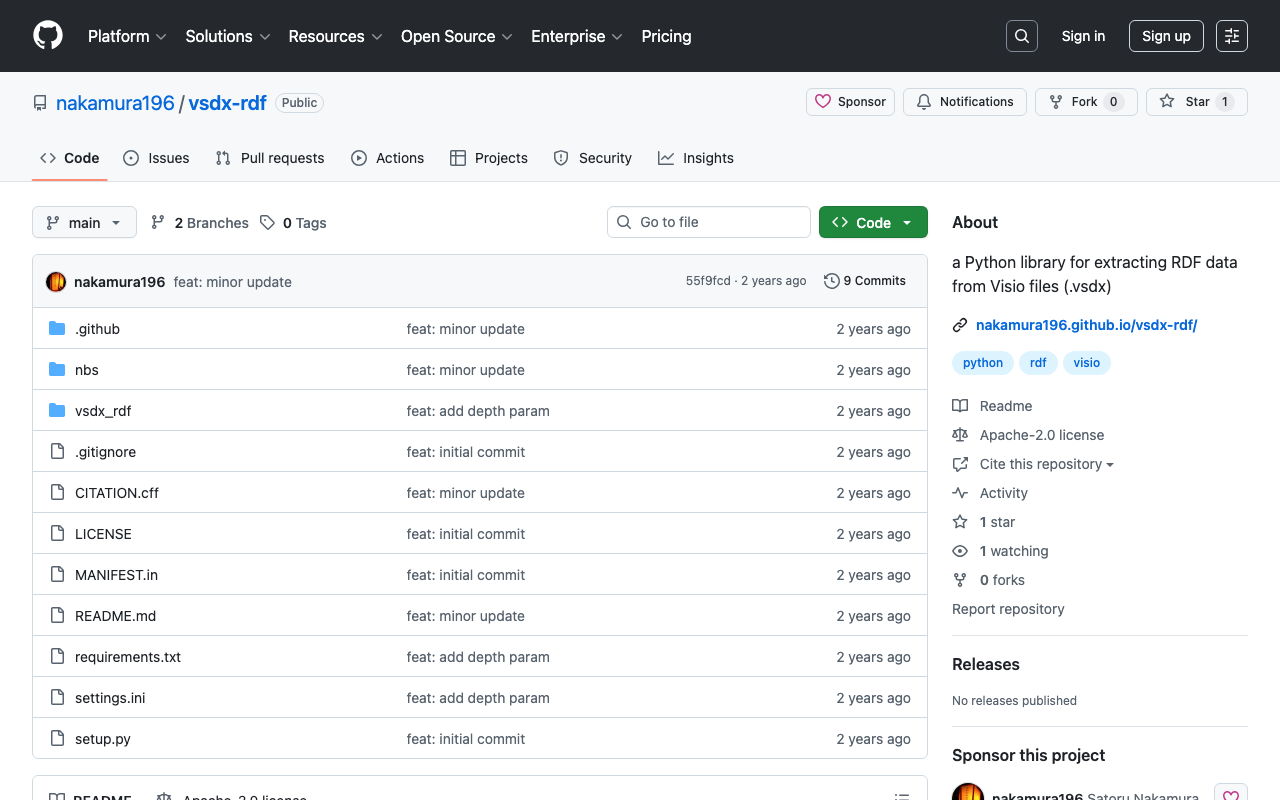
vsdxファイルからrdfファイルを作成するライブラリ

概要 vsdxファイルからrdfファイルを作成するライブラリを作成したので、備忘録です。 https://github.com/nakamura196/vsdx-rdf 背景 以下の記事などで、Microsoft Visioを使ってRDFデータを作成する方法を検討しています。 上記の記事で、「本ライブラリについては別の記事で紹介予定です。」に対応する記事となります。 使い方 以下を参考にしてください。 https://nakamura196.github.io/vsdx-rdf/ Google Colab 本ライブラリを試すためのノートブックを用意しました。 https://colab.research.google.com/github/nakamura196/000_tools/blob/main/vsdxファイルからrdfファイルを作成するプログラム.ipynb 実行後、/content/outputにttlファイルや、pngファイルが出力されます。 まとめ 未熟な点が多いかと思いますが、参考になりましたら幸いです。

2024年7月18日 · 1 分 · Nakamura

concurrent.futures.process.BrokenProcessPoolへの対処

概要 nbdevで、nbdev_prepareを実行した際、以下のエラーが発生しました。 concurrent.futures.process.BrokenProcessPool: A process in the process pool was terminated abruptly while the future was running or pending. 対処法 以下を事前に実行することで、エラーを回避できました。 export OBJC_DISABLE_INITIALIZE_FORK_SAFETY=YES まとめ 同様の事象でお困りの方の参考になりましたら幸いです。

2024年7月18日 · 1 分 · Nakamura

Node.jsを使って、JSON:APIに準拠しているかを検証する

概要 JSON:APIに準拠しているかを検証するにあたり、以下のリポジトリを使用してみましたので、備忘録です。 https://github.com/elliotttf/jsonapi-validator 本記事執筆時点において、7年前から更新がされていないようなので、最新のスキーマ等には非対応かもしれませんが、簡単な検証は行うことができました。 使い方 上記のライブラリを試すにあたり、以下のリポジトリを用意しました。 https://github.com/nakamura196/jsonapi-validator-demo インストール nvmの利用を前提していますが、必須ではありません。 git clone https://github.com/nakamura196/jsonapi-validator-demo cd jsonapi-validator-demo nvm i 22 nvm use 22 pnpm i 試す OKの例 { "jsonapi": { "version": "1.0", "meta": { "links": { "self": { "href": "http://jsonapi.org/format/1.0/" } } } }, "data": [ { "type": "record", "id": "10_A0024853", "attributes": { "title": "サンプル" } } ] } ./node_modules/jsonapi-validator/bin/jsonapi-validator.js -f ./01_valid.json 01_valid.json is valid JSON API. NGな例:不要なプロパティあり aaaという不要なプロパティがあります。 { "jsonapi": { "version": "1.0", "meta": { "links": { "self": { "href": "http://jsonapi.org/format/1.0/" } } } }, "aaa": { "bbb": "ccc" }, "data": [ { "type": "record", "id": "10_A0024853", "attributes": { "title": "サンプル" } } ] } ./node_modules/jsonapi-validator/bin/jsonapi-validator.js -f ./02_invalid_additional_properties.json Invalid JSON API. should NOT have additional properties. schemaPath: #/additionalProperties additionalProperty: aaa should NOT have additional properties. schemaPath: #/additionalProperties additionalProperty: aaa should NOT have additional properties. schemaPath: #/additionalProperties additionalProperty: data should have required property 'errors'. schemaPath: #/required missingProperty: errors should NOT have additional properties. schemaPath: #/additionalProperties additionalProperty: aaa should NOT have additional properties. schemaPath: #/additionalProperties additionalProperty: data should have required property 'meta'. schemaPath: #/required missingProperty: meta should match exactly one schema in oneOf. schemaPath: #/oneOf NGな例:必要なプロパティがない typeという必要なプロパティがない例です。 ...

2024年7月18日 · 2 分 · Nakamura

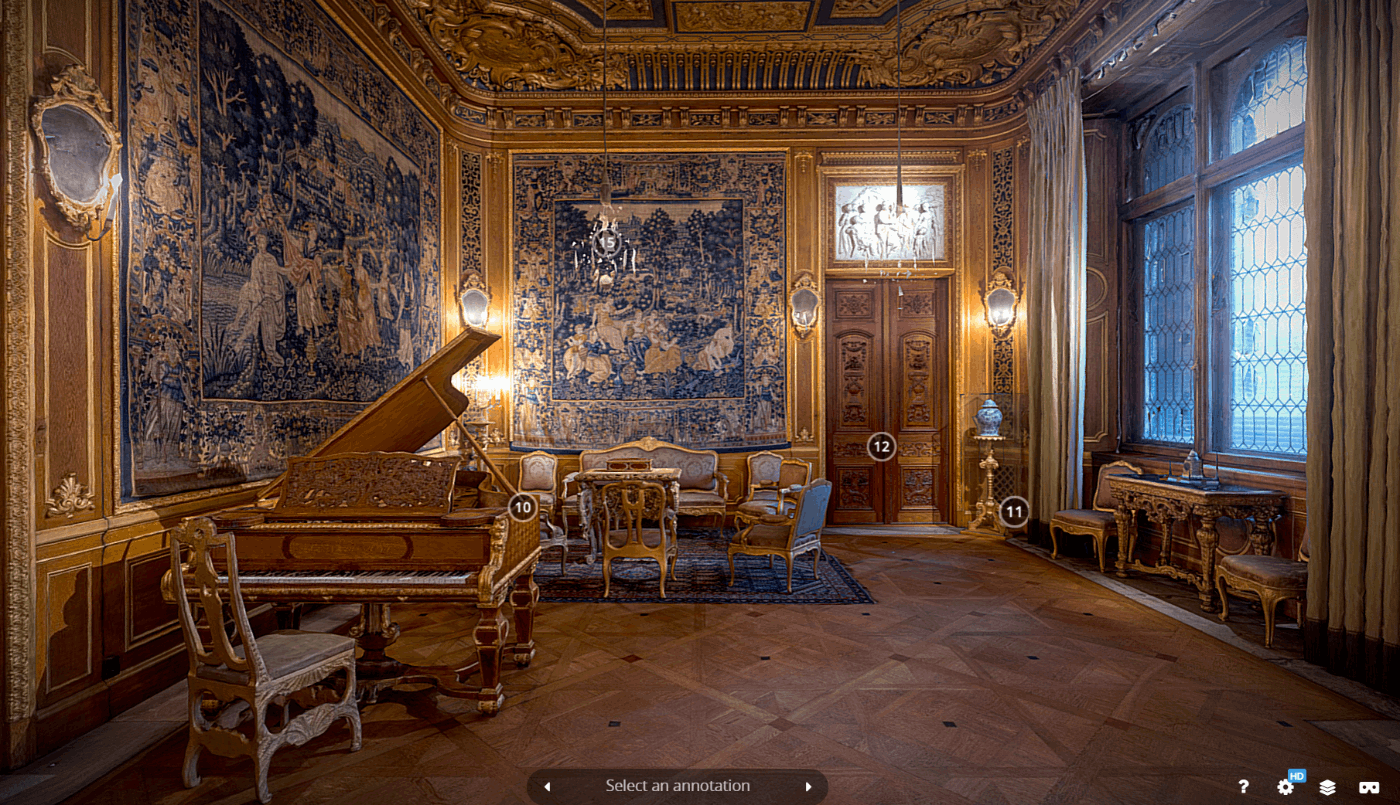
virtual-museum-tour-threejsを試す

概要 以下のリポジトリを試す機会がありましたので、備忘録です。 https://github.com/theringsofsaturn/virtual-museum-tour-threejs 以下でチュートリアル動画も公開されていました。 https://www.youtube.com/watch?v=8oQC0ICNtL0 フォーク リポジトリをフォークして、一部修正を加え、GitHub Pagesでビルド結果を確認できるようにしました。 https://nakamura196.github.io/virtual-museum-tour-threejs/ まとめ Three.jsを使ったアプリ開発にあたり、参考になるかと思います。

2024年7月15日 · 1 分 · Nakamura