Pythonを使ってOmeka Sにメディアをアップロードする方法

概要 Pythonを使ってOmeka Sにメディアをアップロードする方法の備忘録です。 準備 環境変数を用意します。 OMEKA_S_BASE_URL=https://dev.omeka.org/omeka-s-sandbox # 例 OMEKA_S_KEY_IDENTITY= OMEKA_S_KEY_CREDENTIAL= 初期化します。 import requests from dotenv import load_dotenv import os def __init__(self): load_dotenv(verbose=True, override=True) OMEKA_S_BASE_URL = os.environ.get("OMEKA_S_BASE_URL") self.omeka_s_base_url = OMEKA_S_BASE_URL self.items_url = f"{OMEKA_S_BASE_URL}/api/items" self.media_url = f"{OMEKA_S_BASE_URL}/api/media" self.params = { "key_identity": os.environ.get("OMEKA_S_KEY_IDENTITY"), "key_credential": os.environ.get("OMEKA_S_KEY_CREDENTIAL") } ローカルファイルをアップロードする def upload_media(self, path, item_id): files = {} payload = {} file_data = { 'o:ingester': 'upload', 'file_index': '0', 'o:source': path.name, 'o:item': {'o:id': item_id} } payload.update(file_data) params = self.params files = [ ('data', (None, json.dumps(payload), 'application/json')), ('file[0]', (path.name, open(path, 'rb'), 'image')) ] media_response = requests.post( self.media_url, params=params, files=files ) # レスポンスを確認 if media_response.status_code == 200: return media_response.json()["o:id"] else: return None IIIF画像をアップロードする 以下のようなIIIF画像のURLを指定して登録します。 https://dl.ndl.go.jp/api/iiif/1288277/R0000030/info.json def upload_media(self, iiif_url, item_id): payload = { 'o:ingester': 'iiif', 'file_index': '0', 'o:source': iiif_url, 'o:item': {'o:id': item_id}, } media_response = requests.post( self.media_url, params=self.params, headers={'Content-Type': 'application/json'}, data=json.dumps(payload) ) # レスポンスを確認 if media_response.status_code == 200: return media_response.json()["o:id"] else: return None まとめ Omeka Sへの画像登録にあたり、参考になりましたら幸いです。 ...

2025年1月3日 · 1 分 · Nakamura

Sketchfabのアノテーションを試す

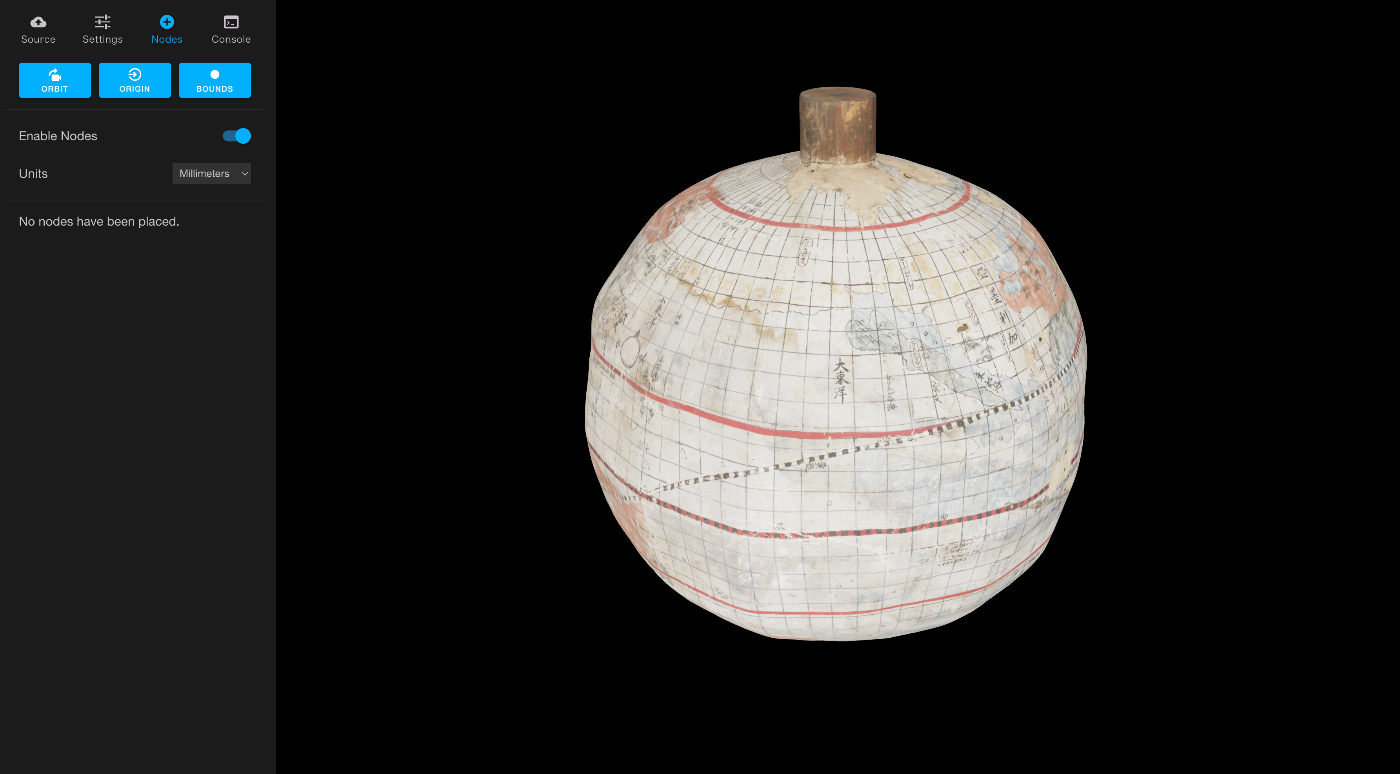
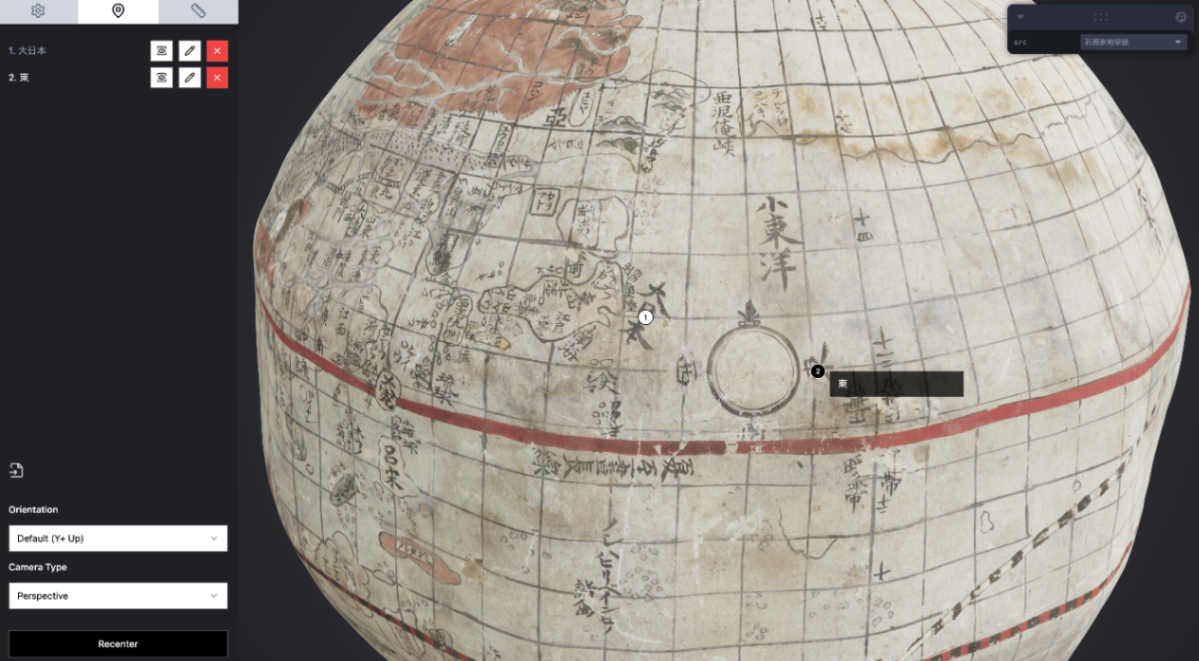
概要 Sketchfabのアノテーションを試してみましたので、備忘録です。 最終的に、以下のようなビューアを作成しました。 https://nakamura196.github.io/SketchfabAnnotationViewer/ https://youtu.be/iEe6TbI3X70 使用データ 「菊池市/デジタルアーカイブ」の「石淵家地球儀」を対象とします。 https://adeac.jp/kikuchi-city/catalog/e0001 使用例 まずSketchfabに3Dデータをアップロードしました。 https://skfb.ly/pt8oU そしてアノテーションを付与しました。結果、以下のようなページが用意されました。 APIを利用する 以下のリポジトリも参考にしてください。 https://github.com/nakamura196/SketchfabAnnotationViewer 以下のようなスクリプトにより、アノテーションの一覧取得や、初期表示に使用するアノテーションの指定、選択したアノテーションへのフォーカスなどを行うことができました。 <!DOCTYPE html> <html lang="en"> <head> <meta charset="UTF-8" /> <meta name="viewport" content="width=device-width, initial-scale=1.0" /> <title>Sketchfab Annotation Viewer</title> <script src="https://cdn.tailwindcss.com"></script> </head> <body class="bg-gray-100 font-sans"> <!-- メインコンテナ --> <div class="max-w-4xl mx-auto py-10 px-4"> <!-- ヘッダー --> <h1 class="text-2xl font-bold text-gray-800 text-center mb-6"> Sketchfab Annotation Viewer </h1> <!-- 3Dビューア --> <div class="mb-6"> <iframe id="api-frame" width="100%" height="480" class="rounded shadow-md border border-gray-300" src="" allowfullscreen ></iframe> </div> <!-- アノテーションリスト --> <h2 class="text-xl font-semibold text-gray-700 mb-4">Annotations</h2> <ul id="annotation-list" class="space-y-2"> <!-- アノテーション項目はJavaScriptで追加 --> </ul> </div> <script src="https://static.sketchfab.com/api/sketchfab-viewer-1.12.1.js"></script> <script src="script.js"></script> </body> </html> // Sketchfab Viewerを埋め込むためのiframeを取得 const iframe = document.getElementById('api-frame'); const client = new Sketchfab(iframe); const urlParams = new URLSearchParams(window.location.search); // SketchfabモデルIDを指定 const modelId = urlParams.get('id') || '02add905e79c446994f971cbcf443815'; // 'id'パラメータを取得 const pos = parseInt(urlParams.get('pos'), 10) || 0; // APIのオプションを指定してモデルをロード client.init(modelId, { success: function (api) { api.start(); api.addEventListener('viewerready', function () { setupAnnotations(api); focusAnnotation(api, pos); // 最初のアノテーションにフォーカス }); }, error: function () { console.error('Sketchfab Viewer failed to load'); }, }); function setupAnnotations(api) { api.getAnnotationList(function (err, annotations) { if (err) { console.error('Failed to fetch annotations'); return; } // アノテーション一覧をHTMLに追加 const annotationListContainer = document.getElementById('annotation-list'); annotations.forEach((annotation, index) => { const annotationItem = document.createElement('li'); annotationItem.textContent = annotation.name; // アノテーションタイトル annotationItem.addEventListener('click', () => { focusAnnotation(api, index); // クリック時にフォーカス }); annotationListContainer.appendChild(annotationItem); }); }); } function focusAnnotation(api, annotationIndex) { api.gotoAnnotation(annotationIndex, { preventCameraAnimation: false, // アニメーションを許可 }); // api.showAnnotation(annotationIndex); // アノテーションを表示 // api.showAnnotationTooltip(annotationIndex); // アノテーションツールチップを表示 } まとめ 3Dデータへのアノテーションの応用にあたり、参考になりましたら幸いです。 ...
2025年1月2日 · 2 分 · Nakamura

objファイルをgltf, glbファイルに変換する

概要 objファイルをgltf, glbファイルに変換する方法の備忘録です。 対象データ 「菊池市/デジタルアーカイブ」の「石淵家地球儀」を対象とします。 https://adeac.jp/kikuchi-city/catalog/e0001 objファイルは以下のURLからアクセスできます。 https://adeac.jp/viewitem/kikuchi-city/viewer/3d/dc-e0097/models/Kikuchi_Globe_180820.obj 対象データのダウンロード ライブラリをダウンロードします。 npm i axios 以下のファイルを用意します。 const axios = require('axios'); const fs = require('fs'); const path = require('path'); // 指定されたURLからファイルをダウンロードする関数 async function downloadFile(url, outputPath) { const writer = fs.createWriteStream(outputPath); const response = await axios({ url, method: 'GET', responseType: 'stream', }); response.data.pipe(writer); return new Promise((resolve, reject) => { writer.on('finish', resolve); writer.on('error', reject); }); } // .obj ファイルをロードし、関連ファイルをダウンロードする async function processObjFile(objUrl, outputDir) { try { // .obj ファイルをダウンロードして内容を取得 const objResponse = await axios.get(objUrl); const objContent = objResponse.data; // .obj ファイルを保存 const objFileName = path.basename(objUrl); const objFilePath = path.join(outputDir, objFileName); fs.writeFileSync(objFilePath, objContent); console.log(`Downloaded OBJ file: ${objFilePath}`); // .mtl ファイルのパスを検索 const mtlMatch = objContent.match(/^mtllib\s+(.+)$/m); if (mtlMatch) { const mtlFileName = mtlMatch[1]; const mtlUrl = new URL(mtlFileName, objUrl).href; const mtlFilePath = path.join(outputDir, mtlFileName); // .mtl ファイルをダウンロード await downloadFile(mtlUrl, mtlFilePath); console.log(`Downloaded MTL file: ${mtlFilePath}`); // .mtl ファイルの内容を取得して関連ファイルを探す const mtlContent = fs.readFileSync(mtlFilePath, 'utf-8'); const textureMatches = [...mtlContent.matchAll(/^map_Kd\s+(.+)$/gm)]; for (const match of textureMatches) { const textureFileName = match[1]; const textureUrl = new URL(textureFileName, objUrl).href; const textureFilePath = path.join(outputDir, path.basename(textureFileName)); // テクスチャ画像をダウンロード await downloadFile(textureUrl, textureFilePath); console.log(`Downloaded texture file: ${textureFilePath}`); } } else { console.log('No MTL file referenced in the OBJ file.'); } } catch (error) { console.error(`Error processing OBJ file: ${error.message}`); } } // 使用例 const objUrl = 'https://adeac.jp/viewitem/kikuchi-city/viewer/3d/dc-e0097/models/Kikuchi_Globe_180820.obj'; const outputDir = './downloads'; if (!fs.existsSync(outputDir)) { fs.mkdirSync(outputDir, { recursive: true }); } processObjFile(objUrl, outputDir); 実行します。 ...

2024年12月30日 · 2 分 · Nakamura

aleph-r3fを試す

概要 以下の記事で、Aleph 3D viewerを紹介しました。 その後調べた結果、以下のリポジトリの存在も知りました。 https://github.com/aleph-viewer/aleph-r3f 以下のように説明されており、react-three-fiberとshadcn/uiを使用している点に違いがあるようでした。 Aleph is a 3D object viewer and annotation/measurement tool built with react-three-fiber and shadcn/ui 以下のように、アノテーション付与機能なども改良されているようでした。 今回の記事でも、菊池市デジタルアーカイブで公開されている「石淵家地球儀」の3Dデータを使用します。 https://adeac.jp/kikuchi-city/catalog/e0001 使い方 以下で閲覧いただけます。 https://iiif-aleph-r3f.vercel.app/ アノテーションタブで、アノテーションの付与を行うことができました。 アノテーションデータのインポート/エクスポートを行うことができ、JSON形式でのエクスポート結果は以下でした。 [ { "position": { "x": -0.06690392681702004, "y": 0.6256817352784154, "z": -0.7424544387001097 }, "normal": { "x": -0.11627753958254597, "y": 0.6430031011979032, "z": -0.7569851687044529 }, "cameraPosition": { "x": -0.15922188799592055, "y": 1.1767071158114843, "z": -1.4378842144444104 }, "cameraTarget": { "x": -0.0023649930953979492, "y": -0.0009789466857910165, "z": -0.011684000492095947 }, "rotation": { "isEuler": true, "_x": 0, "_y": 0, "_z": 0, "_order": "XYZ" }, "label": "大西洋", "description": "初めてのアノテーション" } ] カスタマイズ 「石淵家地球儀」を表示するにあたり、以下のようにソースコードを編集する必要がありました。 import './App.css'; import { useEffect, useRef } from 'react'; ... const [{ src }, _setLevaControls] = useControls(() => ({ src: { options: { // 'Measurement Cube': { // url: 'https://cdn.glitch.global/afd88411-0206-477e-b65f-3d1f201de994/measurement_cube.glb?v=1710500461208', // label: 'Measurement Cube', // }, 石淵家地球儀: 'https://sukilam.aws.ldas.jp/files/original/253efdf34478459954ae04f6b3befa5f3822ed59.glb', 'Flight Helmet': 'https://raw.githubusercontent.com/KhronosGroup/glTF-Sample-Assets/main/Models/FlightHelmet/glTF/FlightHelmet.gltf', ... また、Vercelへのデプロイにあたり、以下のように、tailwind.config.jsを修正する必要がありました。 ...

2024年12月29日 · 2 分 · Nakamura

Aleph 3D viewerを試す

概要 3D object viewerの一つであるAlephを試してみましたので、備忘録です。 https://github.com/aleph-viewer/aleph 菊池市デジタルアーカイブで公開されている「石淵家地球儀」の3Dデータを使用しています。 https://adeac.jp/kikuchi-city/catalog/e0001 背景 IIIF対応の3Dビューアを調査する過程で、以下の記事を見つけました。 https://pro.europeana.eu/post/iiif-for-3d-making-web-interoperability-multi-dimensional こちらで紹介されているビューアの一つとして、Alephを知りました。 使い方 GitHubリポジトリをForkして、Vercelにデプロイしました。 https://aleph-coral.vercel.app/ 初期表示は以下です。 画面左部の入力フォームにあるglbファイルへのURLを変更することで、指定した3Dモデルが表示されました。 まとめ 3Dビューアの調査にあたり、参考になりましたら幸いです。

2024年12月29日 · 1 分 · Nakamura

Cantaloupe: Microsoft Azure Blob Storageに格納した画像を配信する

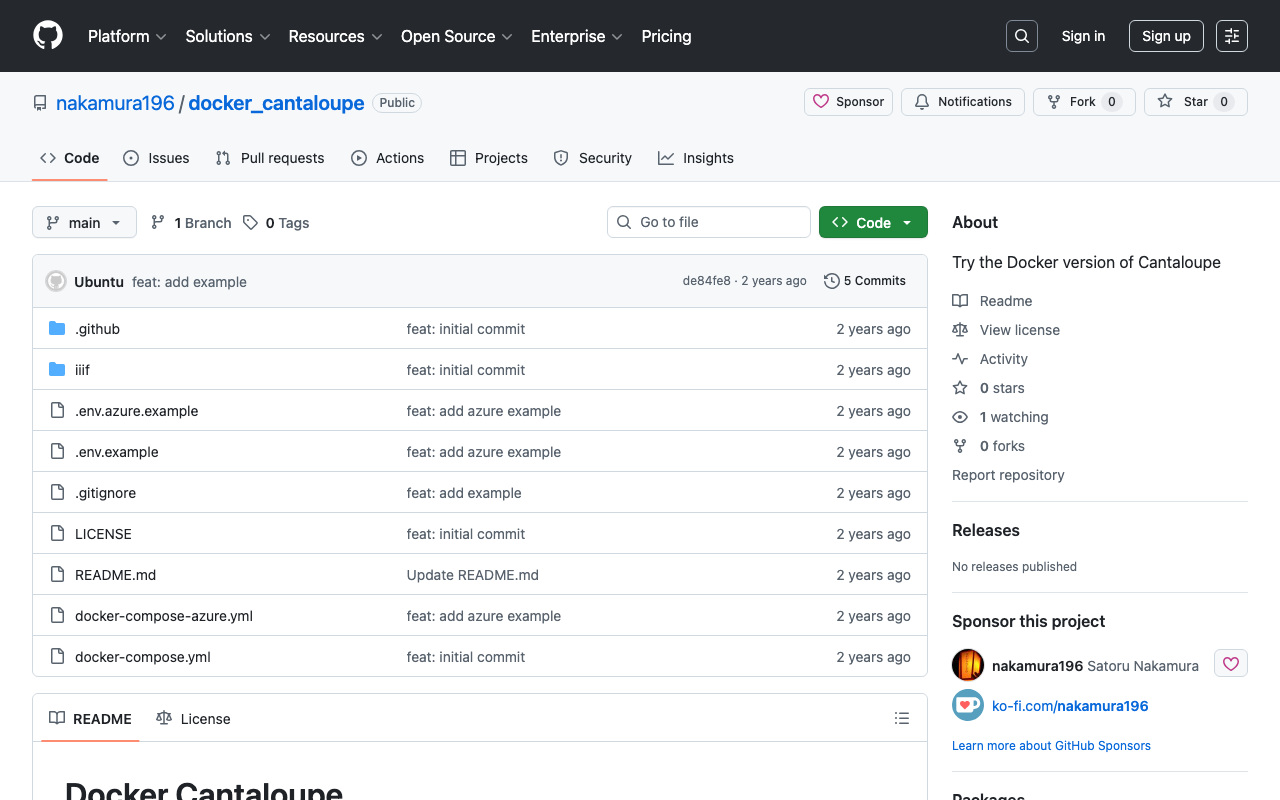
概要 IIIFイメージサーバの一つであるCantaloupe Image Serverについて、Microsoft Azure Blob Storageに格納した画像を配信する方法の備忘録です。 以下のMicrosoft Azure Blob Storage版です。 方法 今回はDocker版を使用します。 以下のリポジトリをクローンしてください。 https://github.com/nakamura196/docker_cantaloupe 特に、.env.azure.exampleを.envにリネームして、環境変数を設定します。 # For Microsoft Azure Blob Storage CANTALOUPE_AZURESTORAGESOURCE_ACCOUNT_NAME= CANTALOUPE_AZURESTORAGESOURCE_ACCOUNT_KEY= CANTALOUPE_AZURESTORAGESOURCE_CONTAINER_NAME= # For Traefik CANTALOUPE_HOST= LETS_ENCRYPT_EMAIL= 下の二つは、Traefikを用いたHTTPS化の設定も含めています。 そして、以下を実行します。 docker compose -f docker-compose-azure.yml up まとめ セキュリティの面など、不十分な点もあるかと思いますが、参考になりましたら幸いです。

2024年12月23日 · 1 分 · Nakamura

Azureの仮想マシンを用いたNDLOCRのGradioアプリ構築

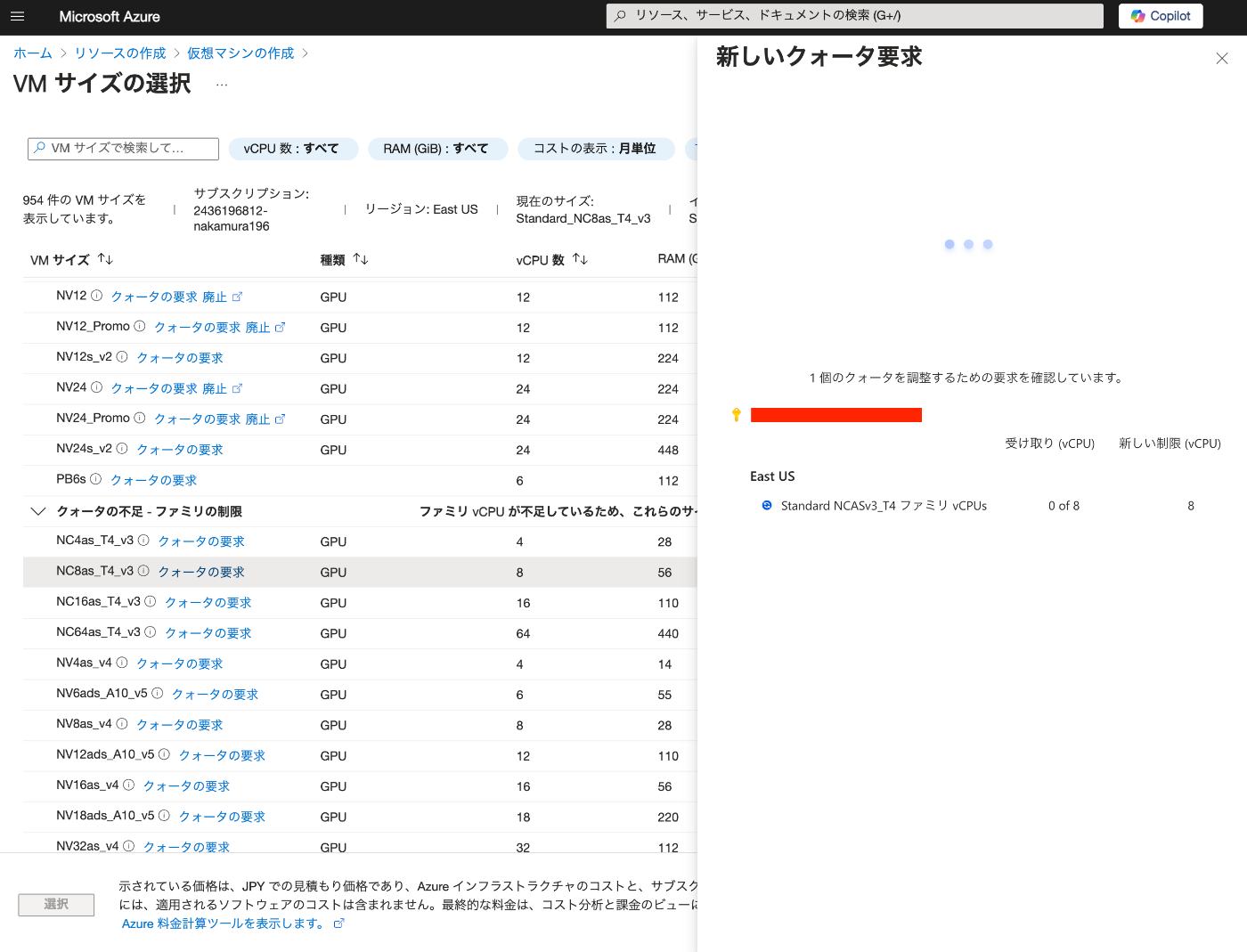
概要 以下の記事で、Azureの仮想マシンとNDLOCRを用いたGradioアプリについて紹介しました。 本記事では、このアプリの構築方法に関する備忘録です。 仮想マシンの構築 GPUを使用するにあたり、クォータの要求を行う必要がありました。 要求後、今回は「NC8as_T4_v3」を使用します。 Docker環境の構築 以下の記事を参考にします。 https://zenn.dev/koki_algebra/scraps/32ba86a3f867a4 Secure Boot の無効化 以下のように記載されています。 Secure Boot を無効化しないと NVIDIA Driver が正しくインストールされない. 実際、無効化しなかった場合、以下の画面が表示され、前に進めませんでした。 以下で、Secure Bootを無効化します。 NVIDIA Driver のインストール ubuntu-drivers コマンドのインストールを行い、インストール可能な NVIDIA Driver を確認する。 sudo apt-get update sudo apt install ubuntu-drivers-common ubuntu-drivers devices 以下が結果です。 vendor : NVIDIA Corporation model : TU104GL [Tesla T4] driver : nvidia-driver-535 - distro non-free recommended driver : nvidia-driver-470-server - distro non-free driver : nvidia-driver-535-server - distro non-free driver : nvidia-driver-470 - distro non-free driver : xserver-xorg-video-nouveau - distro free builtin recommendedをインストールします。 ...

2024年12月23日 · 3 分 · Nakamura

ndlocr_cli(NDLOCR(ver.2.1)アプリケーションを試すことができるGradioアプリを作成しました。

概要 ndlocr_cli(NDLOCR(ver.2.1)アプリケーションを試すことができるGradioアプリを作成しました。 以下のURLからお試しください。 https://ndlocr.aws.ldas.jp/ 補足 現在は1枚の画像アップロードのみに対応しています。今後、PDFのアップロード機能などのオプションも追加したいと思います。 Azureで使用可能なVMである「NC8as_T4_v3」に搭載されている「NVIDIA Tesla T4 GPU」を使用しています。 まとめ いつまでこの形で提供できるかはわかりませんが、ndlocr_cli(NDLOCR(ver.2.1)アプリケーションの精度の確認などにあたり、ご利用いただけますと幸いです。

2024年12月22日 · 1 分 · Nakamura

CollectionBuilderを使ってみる

概要 CollectionBuilderを使ってみる機会がありましたので、備忘録です。 https://collectionbuilder.github.io/ 以下のように説明されています。 CollectionBuilder is an open source framework for creating digital collection and exhibit websites that are driven by metadata and powered by modern static web technology. (機械翻訳)CollectionBuilderは、メタデータを基盤とし、最新の静的ウェブ技術によって動作するデジタルコレクションや展示ウェブサイトを作成するためのオープンソースフレームワークです。 成果物 以下がCollectionBuilderを用いて試作したサイトです。 https://nakamura196.github.io/collectionbuilder-gh/ リポジトリは以下です。 https://github.com/nakamura196/collectionbuilder-gh 以下の記事と同じデータを利用しています。 具体的には、『東京帝國大學本部構内及農學部建物鳥瞰圖』(東京大学農学生命科学図書館所蔵)をサンプルデータとして使用します。 https://iiif.dl.itc.u-tokyo.ac.jp/repo/s/agriculture/document/187cc82d-11e6-9912-9dd4-b4cca9b10970 感想 メタデータ(demo-metadata.csv)の変更のみで、上記のようなサイトを構築することができました。 地図やタイムライン、ファセットやタグクラウドなど、豊富な機能も提供されていました。 またマークダウンファイルによるカスタマイズ性の高さも感じました。 まとめ Omekaのような動的サイトではなく、静的サイトとしてデジタルコレクションを構築する手段として、有用なツールだと感じました。 使いこなせていない点も多いですが、参考になりましたら幸いです。

2024年12月19日 · 1 分 · Nakamura

Nuxt3と@sidebase/nuxt-authを使って、GakuNin RDMの認証を行う

概要 Nuxt3と@sidebase/nuxt-authを使って、GakuNin RDMの認証を行う方法です。 デモアプリ https://nuxt-rdm.vercel.app/ リポジトリ https://github.com/nakamura196/nuxt-rdm 参考 当初、以下のwarningが表示されていました。 AUTH_NO_ORIGIN: No origin - this is an error in production, see https://sidebase.io/nuxt-auth/resources/errors. You can ignore this during development そのため、以下を参考に、 https://auth.sidebase.io/resources/error-reference 以下のように設定したところ、エラーが発生しました。 ... auth: { baseURL: process.env.NEXTAUTH_URL, }, ... これについて、以下のように、rc版のライブラリを使用していることが原因でした。 ... "@sidebase/nuxt-auth": "^0.10.0-rc.2", ... 以下のように、バージョンを変更することで、エラーを回避できました。 ... "@sidebase/nuxt-auth": "^0.9.4" ... 同様のことでお困りの方の参考になりましたら幸いです。 まとめ 改善すべき点などがあるかと思いますが、参考になりましたら幸いです。

2024年12月19日 · 1 分 · Nakamura

Azure OpenAIとLlamaIndexとGradioを用いたRAG型チャットの作成

概要 Azure OpenAIとLlamaIndexとGradioを用いたRAG型チャットの作成を試みたので、備忘録です。 Azure OpenAI Azure OpenAIを作成します。 その後、「エンドポイント:エンドポイントを表示するには、ここをクリックします」をクリックして、エンドポイントとキーを控えておきます。 その後、Azure OpenAI Serviceに移動します。 「モデルカタログ」に移動して、「gpt-4o」と「text-embedding-3-small」をデプロイします。 結果、以下のように表示されます。 テキストのダウンロード 今回は、青空文庫で公開されている源氏物語を対象とします。 https://www.aozora.gr.jp/index_pages/person52.html 以下により、一括ダウンロードします。 import requests from bs4 import BeautifulSoup import os url = "https://genji.dl.itc.u-tokyo.ac.jp/data/info.json" response = requests.get(url).json() selections = response["selections"] for selection in selections: members = selection["members"] for member in members: aozora_urls = [] for metadata in member["metadata"]: if metadata["label"] == "aozora": aozora_urls = metadata["value"].split(", ") for aozora_url in aozora_urls: filename = aozora_url.split("/")[-1].split(".")[0] opath = f"data/text/{filename}.txt" if os.path.exists(opath): continue # pass response = requests.get(aozora_url) response.encoding = response.apparent_encoding soup = BeautifulSoup(response.text, "html.parser") div = soup.find("div", class_="main_text") txt = div.get_text().strip() os.makedirs(os.path.dirname(opath), exist_ok=True) with open(opath, "w") as f: f.write(txt) Indexの作成 環境変数を用意します。 ...

2024年12月16日 · 2 分 · Nakamura

「教科書の中の源氏物語LOD」を使ってみる

概要 「教科書の中の源氏物語LOD」を使ってみましたので、備忘録です。 https://linkdata.org/work/rdf1s10294i 以下のように説明されています。 教科書の中の源氏物語LODは、高等学校古典分野の戦後検定教科書における『源氏物語』掲載データをLOD化したものである。 「教科書の中の源氏物語LOD」を作成および公開してくださった関係者の皆様に感謝いたします。 SPARQLエンドポイントの作成 今回はDyDraを使用します。また、以下の記事を参考に、Pythonで登録しました。 DYDRA_ENDPOINT=https://dydra.com/ut-digital-archives/genji_u/sparql DYDRA_API_KEY=xxxxx from dydra_py.api import DydraClient endpoint, api_key = DydraClient.load_env("../.env") client = DydraClient(endpoint, api_key) # genjimaki_listの登録 client.import_by_file("./data/genjimaki_list_ttl.txt", "turtle") # genjitext_listの登録 client.import_by_file("./data/genjitext_list_ttl.txt", "turtle") 注意点として、RDF内のURIについて、http://linkdata.org/resource/rdf1s10294i#とhttps://linkdata.org/resource/rdf1s10294i#が一部混在しておりました。今回は、http://linkdata.org/resource/rdf1s10294i#に統一する置換処理を施したのち、SPARQLエンドポイントに登録しました。 Snorqlによる確認 構築したSPARQLエンドポイントに対して問い合わせを行うSnorqlを作成しました。 https://nakamura196.github.io/snorql_examples/genji/ 例えば以下では、桐壺巻が使用されている教科書がschema:workExampleで関連付けられています。 https://nakamura196.github.io/snorql_examples/genji/?describe=http%3A%2F%2Flinkdata.org%2Fresource%2Frdf1s10294i%23genji_01 また以下では、教科書「高等古文 3」に掲載されている巻がdct:hasPartで関連づけられています。 https://nakamura196.github.io/snorql_examples/genji/?describe=http%3A%2F%2Flinkdata.org%2Fresource%2Frdf1s10294i%23text_001 Yasguiを用いた可視化 さらに、Yasguiを用いた可視化も試みました。Yasguiについては、以下も参考にしてください。 教科書毎の巻数のカウント 詳細 PREFIX dct: <http://purl.org/dc/terms/> SELECT ?textTitle ?publisher (count(?volume) as ?count) ?text WHERE { ?text dct:hasPart ?volume; dct:title ?textTitle; dct:publisher ?publisher } GROUP BY ?text ?textTitle ?publisher ORDER BY desc(?count) 巻毎の教科書数のカウント 詳細 PREFIX dct: <http://purl.org/dc/terms/> PREFIX schema: <http://schema.org/> SELECT ?chapterTitle (count(?text) as ?count) WHERE { ?chapter schema:workExample ?text; dct:title ?chapterTitle } GROUP BY ?chapterTitle ORDER BY desc(?count) 「桐壺」が最も多く含まれていることが分かります。 検定年毎の教科書数 詳細 PREFIX jp-textbook: <https://w3id.org/jp-textbook/> SELECT (str(?year) as ?year) (count(?year) as ?count) WHERE { ?text jp-textbook:authorizedYear ?year . } GROUP BY ?year ORDER BY asc(?year) ...

2024年12月15日 · 1 分 · Nakamura

Peripleoを試す

概要 「Peripleo」を使う方法を調べましたので、備忘録です。「Peripleo」は以下のように説明されています。 Peripleo is a browser-based tool for the mapping of things related to place. https://github.com/britishlibrary/peripleo 今回は以下の記事で紹介した「れきちず」と組み合わせて、使用する方法について紹介します。 成果物 以下のURLでお試しいただけます。 https://nakamura196.github.io/peripleo/ リポジトリは以下です。 https://github.com/nakamura196/peripleo 本ブログでは、以下の『東京帝國大學本部構内及農學部建物鳥瞰圖』(東京大学農学生命科学図書館所蔵)をサンプルデータとして使用します。 https://iiif.dl.itc.u-tokyo.ac.jp/repo/s/agriculture/document/187cc82d-11e6-9912-9dd4-b4cca9b10970 背景 以下の会議に参加し、「Peripleo」について教えていただきました。「Peripleo」を開発してくださっている関係者の皆様、会議を開催してくださった皆様、また使用方法を教えてくださったGethin Rees氏に感謝いたします。 http://codh.rois.ac.jp/conference/linked-pasts-10/ 基本的な使い方 以下に記載があります。 https://github.com/britishlibrary/peripleo?tab=readme-ov-file#installation-guide 今回は、『東京帝國大學本部構内及農學部建物鳥瞰圖』のデータを利用するにあたり、カスタマイズした点について紹介します。 データの準備 以下のようなスプレッドシートを用意します。 https://docs.google.com/spreadsheets/d/1ZZJZL0K4cBOc0EgMHNV9NQ56C_fcZm0eceBg_OPmxe4/edit?usp=sharing 灰色のセルは不要な列です。 データの準備ができたら、CSV形式でダウンロードします。 JSON形式への変換 Locolligoというツールを用いて、CSVのデータをJSON形式のデータに変換します。 https://github.com/docuracy/Locolligo まず、以下にアクセスします。 https://docuracy.github.io/Locolligo/ CSVファイルをアップロード後、「Assign CSV Columns」を押すと、以下が表示されます。 予約語をCSVのヘッダーに使用しておくと、手動でマッピングする必要がないようでした。うまくマッピングされなかった場合には、手動で設定します。 なお、予約語は以下で確認できました。 https://github.com/docuracy/Locolligo/blob/main/js/data-converter.js function assign(){ $('#assign').removeClass('throb'); var assignmentOptions = [ ['(ignore)'], ['@id','identifier|uuid|id|@id'], ['properties.title','title|name|label'], ['properties.%%%'], ['geometry.coordinates','coordinates|coords|OSGB'], ['geometry.coordinates[0]','longitude|long|lng|easting|westing|X'], ['geometry.coordinates[1]','latitude|lat|northing|southing|Y'], ['names[0].toponym','toponym'], ['links[0].type'], ['links[0].identifier'], ['depictions[0].@id'], ['depictions[0].title'], ['descriptions[0].@id'], ['descriptions[0].value'], ['types[0].identifier'], ['types[0].label'], ['{custom}'] ]; 結果をダウンロードすると、featuresに以下のようなアイテムが格納されたデータを取得できます。 ...

2024年12月13日 · 2 分 · Nakamura

「れきちず」を使ってみる

概要 「れきちず」を使う方法を調べましたので、備忘録です。「れきちず」は以下のように説明されています。 「れきちず」は、「現代風の地図デザイン」の歴史地図を閲覧できるサービスです。 https://rekichizu.jp/ 背景 以下の会議に参加し、「れきちず」について教えていただきました。「れきちず」を開発してくださっている関係者の皆様、会議を開催してくださった皆様、また使用方法を教えてくださった北本朝展先生に感謝いたします。 http://codh.rois.ac.jp/conference/linked-pasts-10/ 以下のように、CODHのサービスでも導入されています。 http://codh.rois.ac.jp/news/ 2024-05-01 江戸マップ「れきちず」データセットを公開しました。また、edomi マップおよびedomi 災害に「れきちず」を導入し、現代デザインの歴史地図上で、edomiの歴史ビッグデータが閲覧できるようになりました。 使用方法 以下に、最低限の機能を実現するためのソースコードを格納しました。 https://github.com/nakamura196/rekichizu/blob/main/docs/index.html 以下でデモをご確認いただけます。 https://nakamura196.github.io/rekichizu/ 以下は地形とともに、富士山を表示した例です。 なお、地形については、以下の点にご注意ください。 江戸時代後期(1800〜1840年ごろ、文化・文政・天保年間)を想定した地図になります。関東・中部以外の地方についても順次拡大していく予定です。 地形の3D表示については現在の地形を表示しています。そのため、当時とは異なる地域があります。 https://rekichizu.jp/ 参考 ライブラリ 本アプリケーションの構築にあたっては、Leafletではなく、MapLibre GL JSを使用します。 https://maplibre.org/maplibre-gl-js/docs/ 以下のサイトにおいて、MapLibre GL JSは、Mapboxのオープンソースフォーク版と説明されていました。 https://qiita.com/asahina820/items/66cd78a4462db86578a4 当初、Mapboxでの使用を前提に、アカウント登録やトークンの発行等を行いましたが、MapLibre GL JSを使用する場合は、このような手続きは不要でした。 地形の有効化/無効化時にピッチを変更 地形の有効化/無効化時にピッチを変更するにあたり、以下のような記述によって実現できました。 map.on("terrain", () => { const terrain = map.getTerrain(); const duration = 1000; // アニメーションの持続時間(ミリ秒) map.easeTo({ pitch: terrain ? 60 : 0, // 地形が有効になったときのピッチ duration, }); }); 当初、map.setPitch(60)などを使用していましたが、map.easeToを使用することにより、スムーズにピッチが変更されるようになりました。 ...

2024年12月9日 · 1 分 · Nakamura

インターネット上で公開されているCSVファイルのための簡易ビューアを開発しました

概要 インターネット上で公開されているCSVファイルのための簡易ビューアを開発しました。 以下のURLでお試しいただけます。 https://nakamura196.github.io/csv_viewer/ 実際にCSVファイルをロードした例は以下です。 https://nakamura196.github.io/csv_viewer/?u=https%3A%2F%2Fraw.githubusercontent.com%2Fomeka-j%2FOmeka-S-module-BulkImport-Sample-Data%2Frefs%2Fheads%2Fmain%2Fitem.csv リポジトリ 以下のリポジトリで公開しています。 https://github.com/nakamura196/csv_viewer/ まとめ 同様のサービスが多々あるかと思いますが、インターネット上で公開されているCSVファイルを簡易に確認するにあたり、参考になりましたら幸いです。

2024年12月6日 · 1 分 · Nakamura

NDL古典籍OCR-Liteを用いたGradio Appを作成しました。

概要 NDL古典籍OCR-Liteを用いたGradio Appを作成しました。 以下でお試しいただけます。 https://huggingface.co/spaces/nakamura196/ndlkotenocr-lite 「NDL古典籍OCR-Lite」ではデスクトップアプリケーションが提供されているため、Gradioのようなウェブアプリがなくても簡単に実行可能な環境が用意されています。 そのため、本ウェブアプリの用途としては、スマホやタブレット等からの利用や、ウェブAPIを介して利用などが考えられます。 作成時の工夫や不具合対応 サブモジュールの利用 本家のndlkotenocr-liteをサブモジュールとして導入しました。 [submodule "ndlkotenocr-lite"] path = ndlkotenocr-lite url = https://github.com/ndl-lab/ndlkotenocr-lite.git そして、ビルド時に以下を実行します。 #!/bin/bash # サブモジュールを初期化して更新 git submodule update --init --recursive git submodule update --remote これにより、ビルド時に、本家のndlkotenocr-liteの最新ファイルを利用できるかと思います。 (誤った理解をしている点もあるかもしれません。) Dockerfileの利用 上記のサブモジュールの利用にあたり、Dockerfileを使ってビルドする方式にしました。 sdkをdockerにすることで、Dockerfileに基づいてビルドされました。 --- title: NDL Kotenseki OCR-Lite Gradio App emoji: 👀 colorFrom: red colorTo: blue sdk: docker pinned: false --- Check out the configuration reference at https://huggingface.co/docs/hub/spaces-config-reference Gradioのバージョン4.44.1の利用 当初のバージョン5.7.1のGradioを使用していましたが、後述するAPI利用の際、以下のエラーが出て利用できませんでした。 ValueError: Could not fetch api info for https://nakamura196-ndlkotenocr-lite.hf.space/: {"detail":"Not Found"} そこで、バージョン4.44.1を使用することで、このエラーを回避することができました。 ...

2024年12月4日 · 2 分 · Nakamura

ジオコーディングのライブラリを試す

概要 ジオコーディングのライブラリを試す機会がありましたので、備忘録です。 対象 今回は、以下のような文字列を対象にしてみます。 岡山市旧御野郡金山寺村。現在の岡山市金山寺。市の中心部からは直線で北方約一〇キロを隔てた金山の中腹にある。 ツール1: Jageocoder - A Python Japanese geocoder まず以下の「Jageocoder」を試します。 https://t-sagara.github.io/jageocoder/ ソースコードの例は以下です。 import json import jageocoder jageocoder.init(url='https://jageocoder.info-proto.com/jsonrpc') results = jageocoder.search('岡山市旧御野郡金山寺村。現在の岡山市金山寺。市の中心部からは直線で北方約一〇キロを隔てた金山の中腹にある。') print(json.dumps(results, indent=2, ensure_ascii=False)) 以下の結果が得られました。 { "matched": "岡山市", "candidates": [ { "id": 197677508, "name": "岡山市", "x": 133.91957092285156, "y": 34.65510559082031, "level": 3, "priority": 1, "note": "geoshape_city_id:33100A2009/jisx0402:33100/jisx0402:33201", "fullname": [ "岡山県", "岡山市" ] } ] } 設定の問題かもしれませんが、岡山市までの情報が得られました。 なお、以下のページでウェブUI経由で試すこともできました。 https://jageocoder.info-proto.com/ ツール2: GeoNLP 以下のページでウェブUI経由で試すことができました。 https://geonlp.ex.nii.ac.jp/jageocoder/demo/ GeoNLPも内部的にはjageocoderを使用しているとのことで、同様の結果が得られました。 また、以下の「テキストジオタギング(GeoNLP)デモ」も試してみました。 https://geonlp.ex.nii.ac.jp/demo/ 入力テキストから複数の地名が抽出されました。 ツール3: Google Maps Platform API 最後に、Google Maps Platform APIを使用してみます。 https://developers.google.com/maps?hl=ja import requests import os from dotenv import load_dotenv load_dotenv(verbose=True) def geocode_address(address, api_key): url = "https://maps.googleapis.com/maps/api/geocode/json" params = { "address": address, "key": api_key, "language": "ja" # 日本語で返却されるように設定 } response = requests.get(url, params=params) if response.status_code == 200: data = response.json() if data['status'] == "OK": result = data['results'][0] location = result['geometry']['location'] print(f"Address: {result['formatted_address']}") print(f"Latitude: {location['lat']}, Longitude: {location['lng']}") else: print(f"Error: {data['status']}") else: print(f"HTTP Error: {response.status_code}") # 使用例 API_KEY = os.getenv("API_KEY") address = "岡山市旧御野郡金山寺村。現在の岡山市金山寺。市の中心部からは直線で北方約一〇キロを隔てた金山の中腹にある。" geocode_address(address, API_KEY) 結果、以下が得られました。 ...

2024年12月3日 · 1 分 · Nakamura

Omeka SのIIIF Serverモジュールで、表示方向を指定する

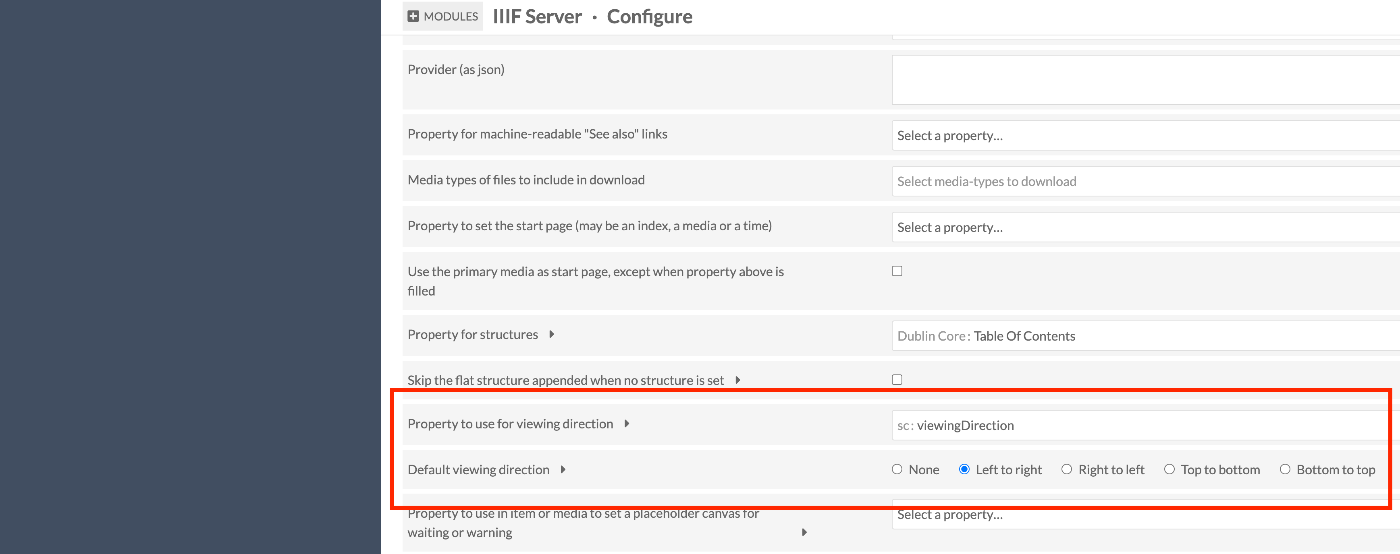
概要 Omeka SのIIIF Serverモジュールで、表示方向を指定する方法です。 IIIFでは、viewingDirectionプロパティを使用し、マニフェストやキャンバスの表示方向を指定することができます。 モジュールの設定 /admin/module/configure?id=IiifServer IIIFサーバモジュールの設定画面において、「viewing direction」の項目を探します。 Property to use for viewing directionでプロパティを指定できる他、デフォルトの表示方向を指定することもできます。 上記の例では、sc:viewingDirectionプロパティを指定していますが、任意のプロパティを設定可能です。 メタデータの追加 上記で指定したプロパティに対して、表示方向の値を入力します。 結果 以下のように、IIIFマニフェストファイルにおいても、viewingDirectionが設定され、左送りが実現できます。 参考 https://iiif.io/api/cookbook/recipe/0010-book-2-viewing-direction/ 以下、ChatGPTによる回答です。 viewingDirection プロパティには以下の4つの値を指定できます: left-to-right 左から右への表示(英語などの横書き言語に適しています)。 right-to-left 右から左への表示(アラビア語やヘブライ語、縦書きの日本語に適しています)。 top-to-bottom 上から下への表示(主に縦書きの言語に適しています)。 bottom-to-top 下から上への表示(特殊な用途向け)。 まとめ Omeka SのIIIF Serverモジュールの利用にあたり、参考になりましたら幸いです。

2024年12月3日 · 1 分 · Nakamura

mdx.jpのオブジェクトストレージに保存したIIIFマニフェストファイルをNestJSから利用する

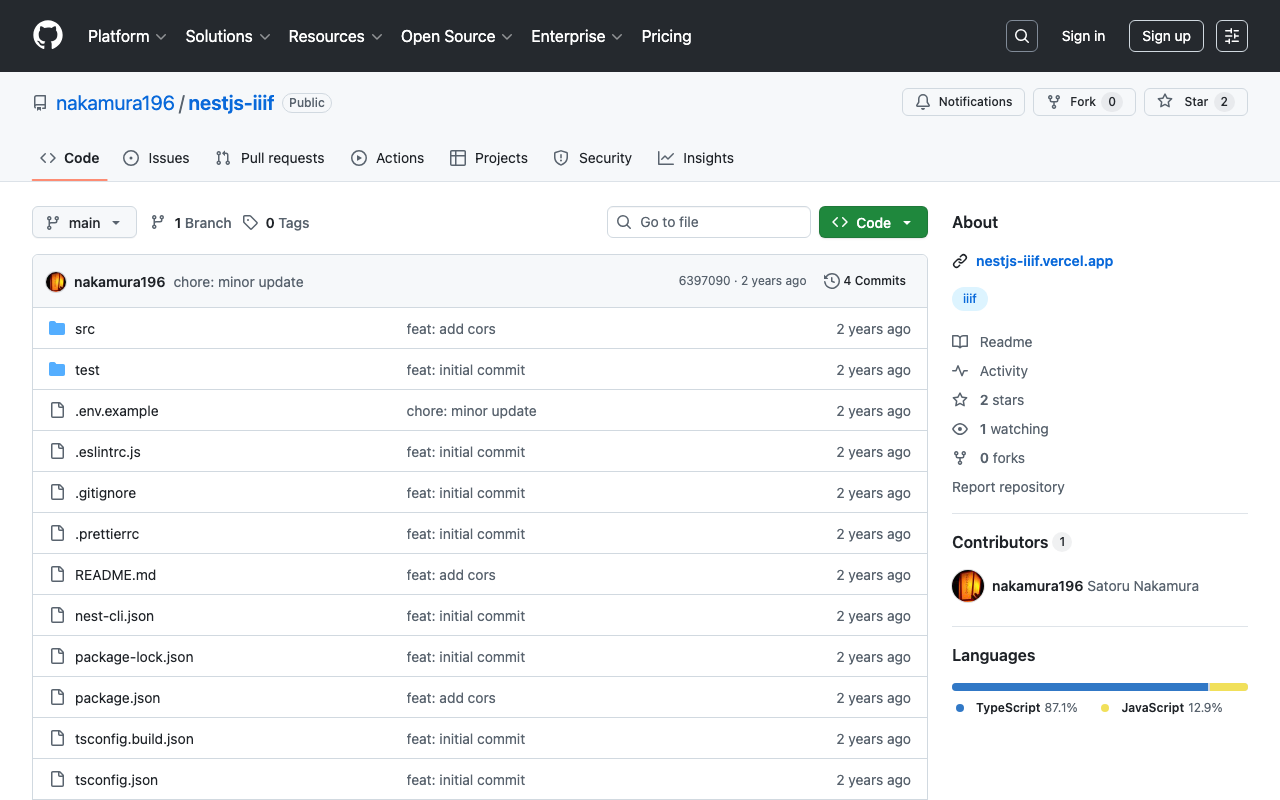
概要 mdx.jpのオブジェクトストレージに保存したIIIFマニフェストファイルをNestJSから利用する機会がありましたので、備忘録です。 背景 mdx.jpのオブジェクトストレージに関して、簡単に確認したところ、corsの設定ができず、mdx.jpのオブジェクトストレージにアップロードしたIIIFマニフェストファイルを他のビューアから利用することは難しいようでした。 https://nakamura196.pages.dev/ja/posts/ad76f58db4e098/#注意(corsの許可) そこで、NestJSからオブジェクトストレージにアップロードしたIIIFマニフェストファイルをロードして返却します。 ソースコード 以下のリポジトリからご確認いただけます。 https://github.com/nakamura196/nestjs-iiif 以下のような環境変数を用意します。mdx.jpのオブジェクトストレージを使用するため、S3_ENDPOINTにhttps://s3ds.mdx.jpを与えます。 S3_ENDPOINT=https://s3ds.mdx.jp S3_REGION=us-east-1 S3_ACCESS_KEY_ID=xxx S3_SECRET_ACCESS_KEY=xxx S3_BUCKET_NAME=xxx そして、@aws-sdk/client-s3を利用して、以下のように、オブジェクトストレージ上のIIIFマニフェストファイルをダウンロードして返却します。 // src/s3.service.ts import { Injectable } from '@nestjs/common'; import { S3Client, GetObjectCommand } from '@aws-sdk/client-s3'; import { Readable } from 'stream'; import * as dotenv from 'dotenv'; dotenv.config(); @Injectable() export class S3Service { private readonly s3Client: S3Client; constructor() { this.s3Client = new S3Client({ region: process.env.S3_REGION, endpoint: process.env.S3_ENDPOINT, forcePathStyle: true, // パススタイルを有効化(多くの互換ストレージで必要) credentials: { accessKeyId: process.env.S3_ACCESS_KEY_ID, secretAccessKey: process.env.S3_SECRET_ACCESS_KEY, }, }); } async getJsonFile(key: string): Promise<any> { const bucket = process.env.S3_BUCKET_NAME; if (!bucket) { throw new Error('S3_BUCKET_NAME is not set in environment variables.'); } const command = new GetObjectCommand({ Bucket: bucket, Key: key }); const response = await this.s3Client.send(command); const stream = response.Body as Readable; const chunks: Uint8Array[] = []; for await (const chunk of stream) { chunks.push(chunk); } const fileContent = Buffer.concat(chunks).toString('utf-8'); return JSON.parse(fileContent); } } まとめ mdx.jpのオブジェクトストレージに保存したIIIFマニフェストファイルの利用にあたり、参考になりましたら幸いです。

2024年12月1日 · 1 分 · Nakamura

LLMに関するメモ

概要 LLMに関するツールについて、備忘録です。 LangChain https://www.langchain.com/ 以下のように説明されていました。 LangChain is a composable framework to build with LLMs. LangGraph is the orchestration framework for controllable agentic workflows. LlamaIndex https://docs.llamaindex.ai/en/stable/ 以下のように説明されていました。 LlamaIndex is a framework for building context-augmented generative AI applications with LLMs including agents and workflows. LangChain と LlamaIndex gpt-4oの回答は以下でした。 LangChainとLlamaIndexはどちらも、LLMs(大規模言語モデル)を利用したアプリケーション開発を支援するフレームワーク 簡単に調べてみたところ、RAG(Retrieval-Augmented Generation)を行う際には、LlamaIndexがより簡単に使用できるようでした。 Ollama https://github.com/ollama/ollama 以下のように説明されていました。 Get up and running with Llama 3.2, Mistral, Gemma 2, and other large language models. ...

2024年11月29日 · 2 分 · Nakamura